
Kunj Tools


Minecraft Toolbox

Kunj Tools is a free, browser-based collection of Minecraft tools. Edit skins in a full 3D editor, merge multiple texture packs into one .mcpack, bundle skins into Bedrock skin packs, generate avatars from any Minecraft skin, create custom painting packs, build custom Totem of Undying textures, and convert Overworld to Nether coordinates instantly. Everything runs in your browser - no downloads, no uploads, no account needed.

๐Ÿ’Ž 100% Client-Side โšก 3D Realtime Engine ๐ŸŽฎ Java & Bedrock ๐Ÿ”’ Private & Secure

All-in-One 3D Minecraft Creator Toolbox

Paint skins in a rotatable 3D canvas, merge texture packs seamlessly, bundle Bedrock skin packs, generate custom totems & music discs, and compute portal coords โ€” all in your browser.

Kunj Brand Icon KUNJ BRAND SKIN

๐Ÿ“œ Changelog

10/28
TOOLGive Command Generator launched: create custom Minecraft 1.21+ Tricky Trials Data Component commands, god weapons with level 255+ enchantments, custom item names & lore, attribute modifiers, and 1-click presets.
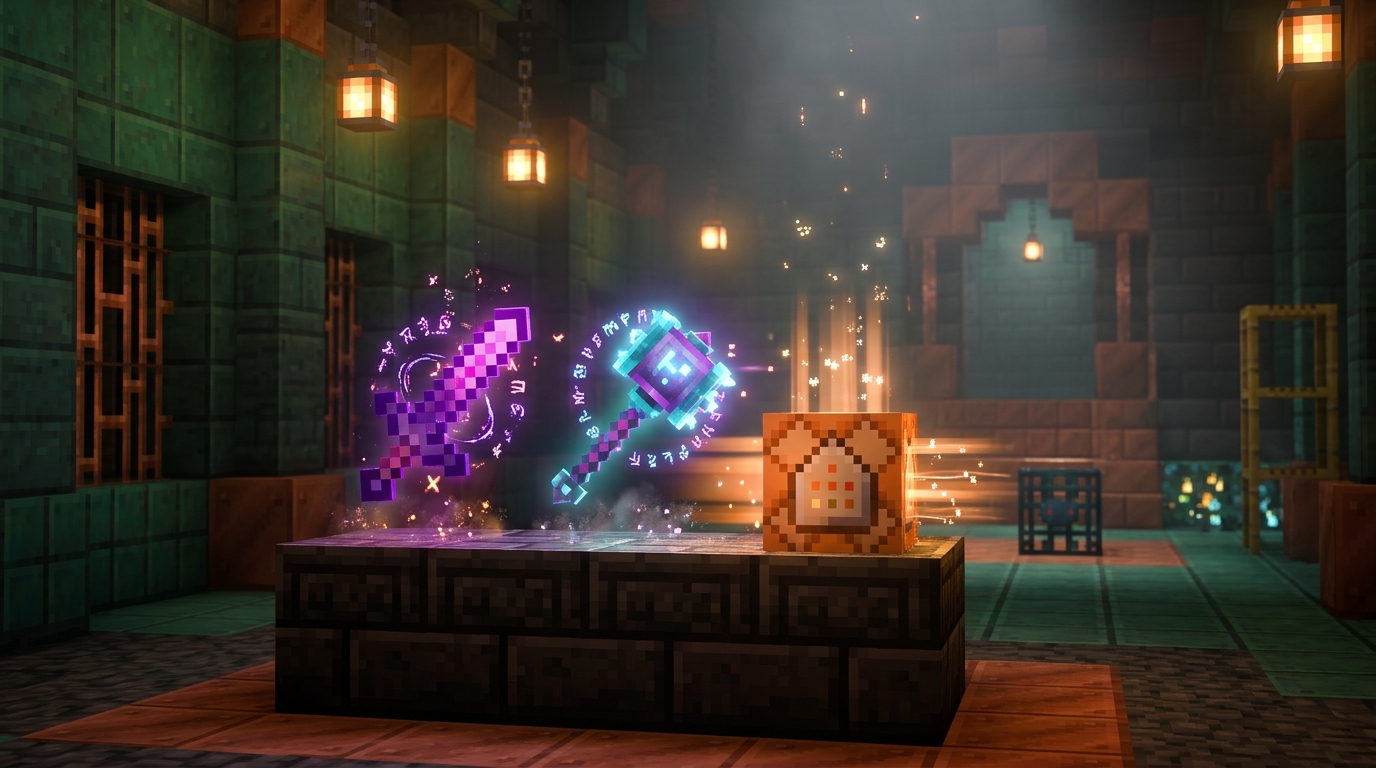
UIGive Command Generator: added high-resolution 3D cinematic showcase in the Gallery with ray-traced lighting and particle effects.
FIXImproved button badge typography, contrast, and eliminated text-shadow overlapping on hero actions.
10/21
NEWPack Merger: merge Java and Bedrock packs together, and every pack's items, sounds and text make it into the merge instead of only the first pack's.
NEWMusic Disc Maker: every song gets an Artist name (filled in from the file's tags when it has them), shown in game as "Artist - Song" like the vanilla discs.
NEWMusic Disc Maker: drop several songs at once, and your songs show as disc cards with a play button and a length badge.
NEWCustom Paintings: your pack name and description are remembered, the description goes into the pack, and paintings keep the order you picked them in.
NEWTotem Maker: pixel editor for Classic, Square and Mini Me (pen, eraser, fill, colour picker, undo), and your edits carry into every download.
NEWArmor Stand Skins: hide the baseplate or any body part for each pose.
NEWSkin Pack Maker: import an existing skin pack to keep working on it, and send skins straight to the Cape Pack Builder.
NEWSkin Editor: line and gradient tools, quick edits, overlay presets and a skin name, plus a button to send your skin to the Skin Pack Maker.
NEWCape Editor: Cape Library and My Capes, mirror painting, zoom and pan, and you can paint the elytra right on the 3D view.
NEWCape Pack Builder: Saved Packs and a Pack Version picker.
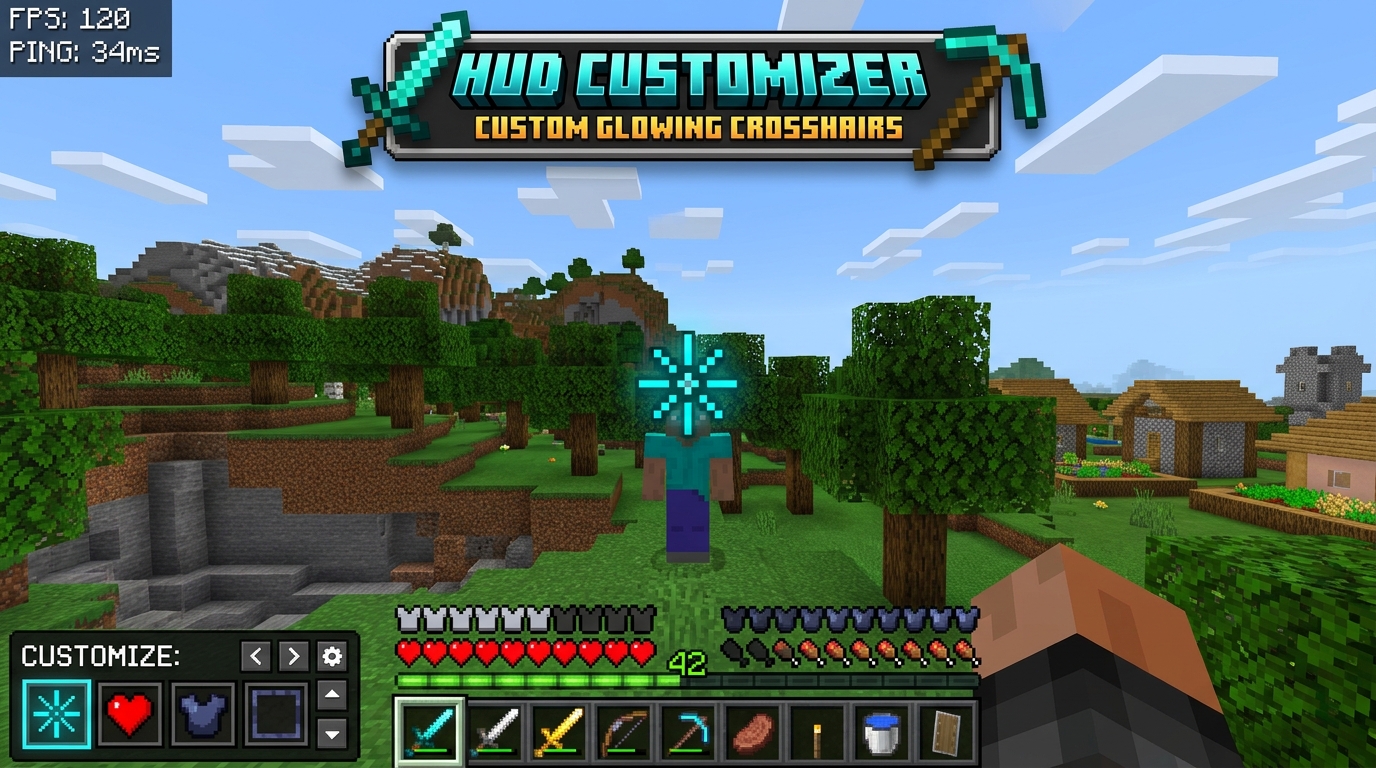
NEWHUD Customizer: crosshair undo and redo, and your settings are remembered between visits.
NEWAvatar Maker: new "3D layers" option for 3D Head and 3D Bust fills in your hat and jacket layer so it looks solid.
NEWColor Codes: your text is remembered between visits.
NEWCape Pack Builder: the new Aurora Cape is in the gallery, under Event.
NEWCape Pack Builder: 5 new Minecraft Dungeons II capes in the gallery: Hero, Twisted, Corrupted Creeper, Soul and Special.
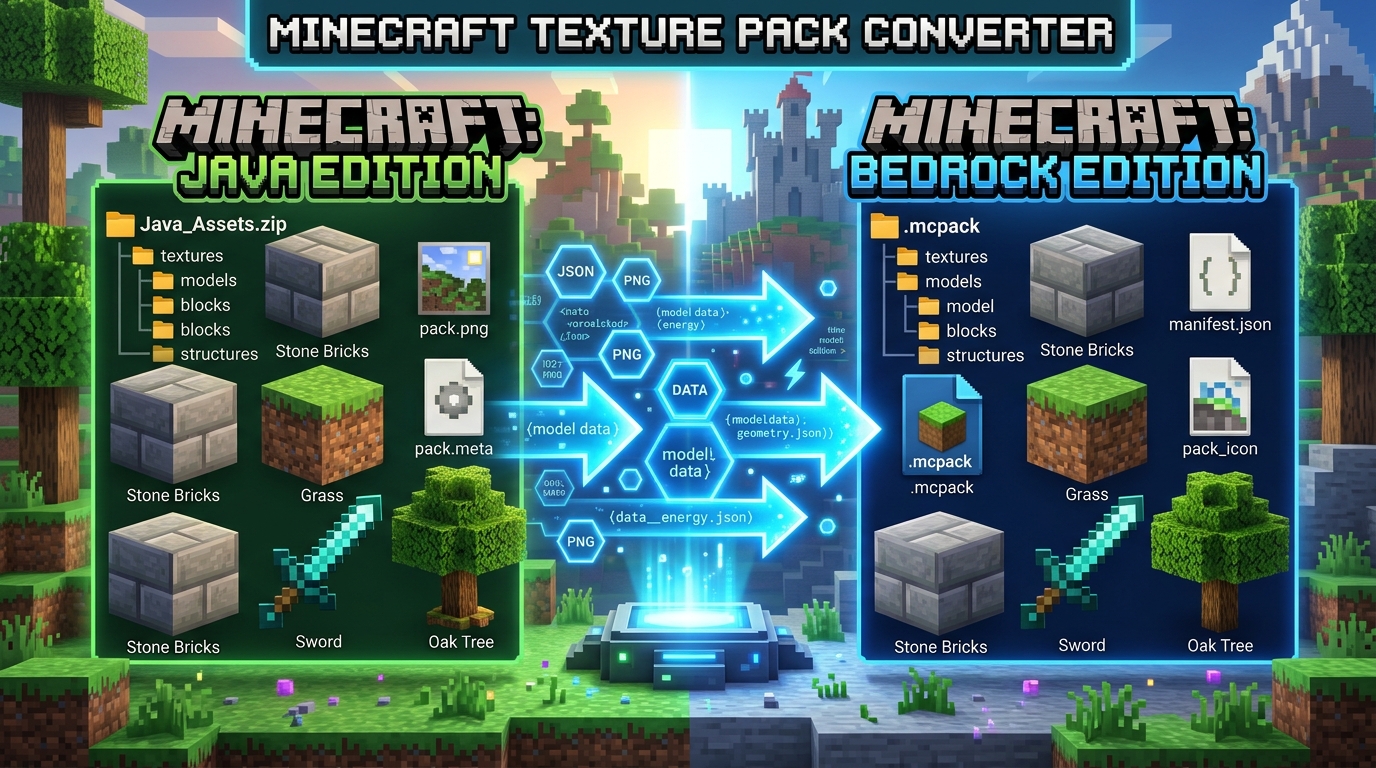
NEWPack Converter: Bedrock to Java and Java to Bedrock conversions are far more accurate, with a report and a recovery .zip every time.
NEWPack Merger: pick a target version and every pack is aligned to it before merging, so packs from different versions merge cleanly.
NEWArmor Stand Skins: the username skin grabber gets a Bedrock / Java toggle.
NEWArmor Stand Skins: custom pose builder. Replace any of the 13 poses with sliders or a Blockbench animation, with a live 3D preview (holding a real sword), mirror and copy-from. You can also hide the head, body, arms, legs or baseplate in any pose. Plus an optional default texture for unnamed stands.
NEWHUD Customizer: Menu Background card for Bedrock. Upload a picture and it replaces the spinning title-screen panorama.
NEWColor Codes: 13 Bedrock-only material colours, a Bedrock group in the format bar and a cheat sheet grouped into Colors / Styles / Bedrock only.
NEWCape Editor: Banner Cape Designer with 43 real Minecraft banner patterns, 16 banner colours and 16 body colours. Stack and recolour layers, then add the result as a layer.
NEWCape Editor: Presets card with 16 dye-coloured hood capes, a "Your Head" layer (username or skin upload), upload any picture and it is pixelized onto the cape, and an Auto-fill elytra button.
NEWAvatar Maker: the 3D Head and 3D Bust styles run on a real 3D renderer with smooth drag-orbit and double-tap to reset.
NEWArmor Stand Skins: per-skin Steve/Alex model toggle, auto-detected, tap to override.
NEWAvatar Maker: Chibi style reworked with true Front, 3/4 Left and 3/4 Right views, plus an Animated option for Drops and Chibi with GIF and APNG downloads.
NEWCape Editor: mobile split view, your own skin on the 3D previews (remembered between visits), a 3D grid toggle and Idle / Walk / Flying poses on the elytra preview.
NEWTotem Maker: fifth style "Custom Image". Upload any picture as your totem with a 16 to 256 resolution picker, no skin needed.
FIXPack Converter: converted Bedrock packs no longer crash Minecraft while the world loads.
FIXPack Merger: merged Bedrock packs no longer crash Minecraft while the world loads.
FIXHUD Customizer: your custom crosshair actually shows up on Bedrock now.
FIXMusic Disc Maker: Java 1.21 and newer show your song name under the disc and in Now Playing, and the wrong lengths for Precipice, Tears and Lava Chicken are fixed.
FIXSkin Editor: fixed the editor sometimes not opening, added a 2D mode for devices without 3D support, and it stops using your CPU after you leave the page.
FIXCape Pack Builder: OptiFine capes come out 1:1, and the mobile cape pack no longer floods Minecraft's content log with errors (it now needs Bedrock 1.21.130 or newer).
FIXCustom Paintings: re-importing a pack brings every painting back, and the Java Bust painting is really replaced now.
FIXArmor Stand Skins: old 64x32 skins and HD skins work, and capes are kept when you re-import a pack.
FIXPlayer Heads: old 64x32 skins and HD skins work, and ยง colour codes work in the pack name.
FIXSkin Pack Maker: old 64x32 skins get their left arm and leg.
FIXAvatar Maker: Notch-style skins and the transparent-with-border option work properly.
FIXPacks from 9 tools (Armor Stand Skins, Custom Paintings, the mobile cape pack, Emoji Pack, HUD Customizer, Totem Maker, Pack Merger, Pack Converter and Music Disc Maker) are now plain resource packs instead of add-ons, so they should no longer be required when friends join your world.
FIXJava packs now support up to Minecraft Java 26.3.
FIXFixed the dead YouTube link in the footer, old links ending in a slash work again, and windows between 601 and 900 pixels wide get the Tools menu.
FIXEmoji Pack Maker: emojis now show at vanilla size in game. Every emoji is 16ร—16, the size of the biggest vanilla emojis, and bigger images are shrunk to fit instead of drawing about three chat lines tall.
FIXPlayer Heads: importing a .mcaddon or .mcpack now works on iPhone from every page.
FIXMusic Disc Maker: dark disc names like Stal are readable in both day and night mode.
FIXMusic Disc Maker: if the OGG encoder cannot load (ad blocker, bad connection), the build no longer hangs forever. It tells you and falls back to WAV.
FIXCape Pack Builder: long gallery names like Minecon 2016 wrap instead of getting cut off.
FIXSkin Editor: the side panel is no longer its own little scroll box and the status line no longer gets clipped. The page scrolls.
FIXHUD Customizer: Bedrock XP bar rebuilt to match Bedrock Tweaks (no more tiled bar, smooth gradients), and white hearts come out white instead of grey.
FIXCape Editor: undo and redo restore whole layers, and adding, moving or hiding a layer is its own undo step.
FIXSkin Pack Maker: the gradient, rainbow and sunset overlay suits actually show up on Bedrock now.
FIXPack Merger: selecting several packs at once adds all of them, and a 64ร—64 pack icon is no longer mistaken for a skin.
FIXPlayer Heads: placed heads use the stone sound instead of cloth.
FIXThe footer no longer overflows the page on desktop or clips on mobile.
FIXAvatar Maker: the editor's right column no longer gets cut off in Safari.
FIXPNG downloads from Avatar Maker, Cape Editor and Totem Maker now work on Safari and iPhone.
FIXHUD Customizer: hardcore hearts actually change in-game now.
FIXCape Editor: the 3D preview's left and right sides were swapped; fixed.
FIXTotem Maker: black specks on soft-brush skins fixed on the 3D style.
FIXAvatar Maker: the "Credit us" popup shows at most once a week instead of after every download.
FIXTotem Maker: Actions & Stuff compatibility for the 3D Model style. Place the pack above it and it works.
7/24
NEWHuge under-the-hood upgrade: tool pages now load much faster, especially after your first visit.
NEWEvery pack you build now gets its own custom icon made from your actual content โ€” your heads, paintings, totem, or disc โ€” in a fresh Kunj Tools style.
NEWCleaner pack names: packs are now titled like "Steve's Custom Totem by Kunj Tools", and Java packs show their name in the pack menu too.
NEWCape Pack Builder now works on mobile โ€” the "Windows Bedrock only" warning is gone.
NEWCape Builder: all-new gallery with 49 capes.
NEWPlayer Heads: charged-creeper mode โ€” charge a creeper and its explosion makes mobs drop their heads.
NEWSkin Editor overhaul: layers, hotkeys, smarter undo, a better 3D view, and cleaner body-part controls with a "?" shortcuts popup.
UIColor Codes: the glyph library is regrouped into clean sections with a denser layout โ€” 151 glyphs, way less scrolling.
UIHUD Customizer: 15 redesigned crosshair presets, including the new Pixel preset.
FIXPack Converter: big accuracy upgrade โ€” leather armor, beds, and equipment now convert correctly.
FIXiOS: .mcpack downloads open straight into Minecraft on more tools.
7/09
NEWCopper 2.0, a community cape pack by Droid282, is now available to grab.
NEWHUD Customizer crosshair presets now live-tint to your picked color.
UICustom Paintings' "Replaces" picker is now a popup grid instead of a scrolling dropdown.
NEWCustom Paintings, Music Disc Maker, and Armor Stand Skins can now import a pack you built before to keep editing it.
6/29
FIXTotem Maker: the 3D Model preview now shows the full figure centered instead of getting cut off in the corner on high-res screens.
FIXTotem Maker: fixed Bedrock 2D totems (Classic / Square / Mini Me) showing up inside the player instead of in your hand. If you already grabbed one, just re-download it.
View full changelog โ†’
โšก Complete Minecraft Creator Hub & MC Tools Alternative

The Ultimate Free 3D Minecraft Creator Toolbox (MC Tools & Utilities)

Welcome to Kunj Tools (kunjplay.com) โ€” the premier, 100% free online Minecraft creator platform engineered for builders, skin designers, texture artists, and server administrators. If you've been searching for a modern, privacy-first alternative to legacy sites like mctools (mc tools / mctools net), Kunj Tools brings state-of-the-art WebGL 3D rendering, instant client-side pack conversion, and zero-server processing directly into your browser.

๐ŸŽจ 3D Skin & Avatar Studio

Design custom Minecraft skins directly on a rotatable, illuminated 3D character mesh. Toggle body parts, paint outer clothing layers, fetch public skins by gamertag, and generate high-resolution Discord PFP avatars, busts, and full-body posters with custom lighting.

๐Ÿ“ฆ Resource Pack Merger & Converter

Combine dozens of .mcpack or Java .zip resource packs into a single optimized bundle. Port Java texture packs directly to Bedrock Edition with automated file hierarchy restructuring, flipbook animated textures, and sound mapping.

โš”๏ธ Custom In-Game Assets & Items

Transform your player skin into an animated 3D Totem of Undying, build custom Bedrock cape packs with matching Elytra wings, replace in-game music discs with custom OGG audio, design custom paintings, and configure custom player heads.

๐Ÿ“ Mathematical & Chat Utilities

Solve Minecraft portal linking coordinates with our live 2-way Overworld-to-Nether calculator (1:8 ratio math). Generate vibrant chat text, signs, and server MOTD formatting with section sign (ยง), ampersand (&), and modern RGB hex gradients.

๐Ÿ›ก๏ธ Why Kunj Tools Outperforms Legacy MC Tools Websites

Many legacy web tools upload your personal skins, music tracks, and texture packs to unencrypted remote servers, creating latency, privacy concerns, and storage limits. Kunj Tools is built with a fundamentally modern philosophy: 100% Client-Side Web Architecture.

๐Ÿ”’ Zero Server Uploads
Your images, audio, and ZIP archives are processed strictly in your browser's local memory via Web Workers and JSZip.
โšก Lightning Fast WebGL
Real-time 60fps 3D previews powered by Three.js and skinview3d, with hardware-accelerated shaders and lighting.
๐ŸŽฎ Java & Bedrock Parity
Full compatibility across Minecraft Java Edition and Bedrock Edition (Windows 10/11, Android, iOS, Xbox, PlayStation, Switch).

๐Ÿ“Š Minecraft Version & Format Compatibility

Every tool on Kunj Tools is continually validated against official Mojang releases to ensure that your exported packs import cleanly without manifest errors or missing textures:

Tool Feature Minecraft Java Edition Minecraft Bedrock Edition File Output
3D Skin Editor 1.8 through 1.21+ (Classic & Slim) All Bedrock versions (64ร—64 & 128ร—128) PNG (Standard UV layout)
Pack Merger Format 4 through Format 34+ Engine 1.16 through 1.21+ .mcpack / .zip with custom icon
Pack Converter Java 1.6 to 1.21.4+ Target Bedrock 1.20 to 1.21.90+ Ready-to-activate .mcpack
Custom Capes OptiFine / Fabric cape templates Bedrock Persona & Skin Pack Capes .mcpack / PNG textures
Totem of Undying Assets item replacement 2D Item or 3D Mini-Me model .mcpack & Java .zip
Music Discs All 21 discs (including 1.21 tracks) All 21 discs with sound definitions Multi-track resource pack

โ“ Frequently Asked Questions (MC Tools & Creator FAQ)

What is Kunj Tools and how is it different from other mc tools websites? +
Kunj Tools (kunjplay.com) is an all-in-one browser-based Minecraft toolbox designed as a modern, high-speed alternative to older platforms like mctools.net. Unlike legacy tools that require downloading third-party software or uploading personal files to remote servers, Kunj Tools executes 100% of its computations (3D rendering, zip compression, audio conversion, and texture generation) locally on your device using client-side JavaScript, WebGL, and WebAssembly.
Are Kunj Tools resource packs and skin packs safe to use? +
Yes, 100% safe. Every pack generated by Kunj Tools is a standard vanilla-compatible Minecraft archive (.mcpack for Bedrock or .zip for Java). Our tools do not require administrative privileges, installer programs, or executables. All generated files contain clean JSON manifests, UUIDs, and PNG/OGG assets that strictly adhere to official Mojang specifications.
Does Kunj Tools work on mobile devices (iPhone, iPad, Android)? +
Yes! Kunj Tools is fully responsive and optimized for mobile touchscreens. When you download an .mcpack file on an iOS or Android device, tapping the downloaded file will directly open Minecraft and trigger the automatic "Import Started" notification in the game.
How do I install a downloaded .mcpack file in Minecraft Bedrock? +
Installing an .mcpack is seamless: on Windows 10/11, simply double-click the downloaded file and Minecraft Bedrock will launch and import it automatically. On mobile (iOS / Android), open the file from your Downloads folder using the Minecraft app. Once imported, go to Settings โ†’ Global Resources โ†’ My Packs and click Activate.
Does Kunj Tools support Minecraft 1.20 and 1.21 Tricky Trials updates? +
Yes. All generators, pack structures, and sound definitions on Kunj Tools are fully updated to support Minecraft 1.20 (Trails & Tales) and Minecraft 1.21 (Tricky Trials), including new music discs like Precipice and Creator, new painting variants, and updated Bedrock manifest engine versions.
Do I need an account or subscription to use Kunj Tools? +
No account, login, or subscription is ever required. Kunj Tools is completely free for all Minecraft players, server owners, and content creators worldwide. You own 100% of the rights to the content and packs you build using our tools.
© 2026 Kunj Tools · Privacy · Terms · About
Not an official Minecraft service. Not approved by or associated with Mojang or Microsoft.

Minecraft Give Command GeneratorGive Command Generator

Generate custom 1.21+ component commands, god weapons, 255+ enchantments & unbreakable items

1. Minecraft Edition & Version
2. Select Minecraft Item
3. Custom Name & Color
Custom HEX:
4. Custom Item Lore

Add descriptive text lines shown under the item name in purple/gray/custom colors.

5. Enchantments Studio (1.21 Ready)
6. Attribute Modifiers (Damage, Health, Speed)

Buff item stats (e.g. +100 Attack Damage, +40 Max Health / extra hearts, or +0.2 Movement Speed).

7. Advanced Flags & Components
๐ŸŽฎ In-Game Tooltip Preview
โš”๏ธ
Netherite Sword
Minecraft Item
๐Ÿ“‹ Generated /give Command
0 characters Client-side generator

Minecraft /give Command Guide & FAQ

How do I use the /give command in Minecraft 1.21+ Tricky Trials?
In Minecraft 1.20.5 and 1.21+, Mojang replaced the old NBT tag format with the modern Data Component system. Instead of writing curly braces like minecraft:diamond_sword{Enchantments:[...]}, you now use square brackets with component keys: minecraft:diamond_sword[enchantments={levels:{"minecraft:sharpness":5}},custom_name='{"text":"Excalibur"}']. Our generator automatically writes 100% error-free syntax for 1.21+ Tricky Trials, classic 1.13-1.20 Java, and Bedrock Edition.
How to give yourself God Weapons with Level 255 or 1000 Enchantments?
Survival anvils cap enchantments at their vanilla maximums (e.g. Sharpness V, Efficiency V). However, the /give command in Minecraft Java allows you to specify enchantment levels up to 255! Simply enable the โšก God Mode checkbox in our generator, adjust your sliders to 255, and copy the command. These weapons deal massive one-shot damage, mine blocks instantly, or send mobs flying thousands of blocks away.
How do I create Unbreakable items in Minecraft?
In modern Java 1.21+, add the component [unbreakable={}] to the item ID. In classic Java 1.13โ€“1.20.4, use {Unbreakable:1b}. Unbreakable items will never lose durability, never break in combat or mining, and never need repair in an anvil. In Bedrock Edition, item lock components like {"minecraft:item_lock":{"mode":"lock_in_inventory"}} prevent loss upon death.
Why is my command too long for Minecraft chat?
Minecraft's player chat box has a strict limit of 256 characters. If your generated command contains long lore, multiple level 255 enchantments, or attribute modifiers, it will exceed 256 characters. To run it, give yourself a Command Block using /give @p command_block, place it on the ground, paste your command inside (Command Blocks support up to 32,767 characters), and activate it with a button or redstone lever!
Does this generator support the new 1.21 Mace and Tricky Trials enchantments?
Yes! Kunj Tools fully supports the Mace weapon introduced in Minecraft 1.21 Tricky Trials, along with its exclusive enchantments: Wind Burst (propels the player into the air after smash attacks), Density (multiplies fall-damage smash), and Breach (pierces through enemy armor).
© 2026 Kunj Tools · Privacy · Terms · About
Not an official Minecraft service. Not approved by or associated with Mojang or Microsoft.

Coordinate Calculator

Convert between Overworld and Nether coordinates instantly

๐ŸŒณ Overworld ร—1
Nether รท8

1 block in the Nether = 8 blocks in the Overworld. Build your portal at the converted spot and link up first try.

๐Ÿ“ Minecraft Portal Linking & Coordinate Math Guide

Mastering Minecraft Nether Portal Linking and Coordinate Mathematics

Traveling through the Nether is the fastest transportation method in Minecraft. Because distance in the Nether is scaled down by an exact 1:8 ratio compared to the Overworld, traveling just 1,000 blocks along a Nether highway equates to 8,000 blocks in the Overworld. However, improper portal placement can cause frustrating cross-linking errors where two Overworld portals connect to the same Nether portal. Use this guide and live calculator to guarantee seamless two-way portal links every single time.

๐Ÿ“ The 1:8 Horizontal Distance Rule

Horizontal coordinates (X and Z) in the Nether correspond to 8 blocks in the Overworld. When moving from Overworld to Nether, divide X and Z by 8. When returning from Nether to Overworld, multiply X and Z by 8.

๐Ÿ“ The Y-Axis (Altitude) Reality

Unlike X and Z, the Y-axis (elevation) is not divided by 8. While portal search algorithms prioritize matching X and Z coordinates, elevation (Y) acts as the tiebreaker when multiple portals compete within the 128-block detection sphere.

๐Ÿš€ How to Build a Perfectly Linked Portal Pair (Step-by-Step)

1
Note Down Your Overworld Coordinates
Stand inside your constructed Overworld portal frame (do not ignite it yet). Press F3 on Java Edition or enable Show Coordinates in Bedrock game settings. Note your exact X, Y, and Z numbers.
2
Calculate Target Nether Coordinates
Enter your Overworld numbers into the calculator above. The tool automatically computes Nether X = X รท 8 and Nether Z = Z รท 8. Keep your Y level close to your intended Nether elevation (e.g. Y=115 for safe Nether roof ceiling tunnels).
3
Build and Ignite in the Nether First
Travel to the calculated Nether coordinates through an existing portal or dig safely to that exact location. Place your 4ร—5 obsidian frame at the calculated spot and ignite it with flint and steel.
4
Ignite and Test Two-Way Linking
Step through your newly created Nether portal. It will exit directly into your Overworld frame. Step back in, and you will arrive at your exact Nether portal with zero displacement.

๐Ÿ“Š Quick Reference Coordinate Conversion Table

Overworld Location Overworld (X, Z) Nether Equivalent (X, Z) Nether Travel Saved
World Spawn Center 0, 0 0, 0 0 blocks
Nearby Village 800, -400 100, -50 1,050 blocks saved
Stronghold / End Portal 2,400, 1,600 300, 200 2,524 blocks saved
Ocean Monument 4,000, -3,200 500, -400 4,482 blocks saved
Woodland Mansion 16,000, 12,000 2,000, 1,500 17,500 blocks saved

โ“ Frequently Asked Questions (Portal Linking FAQ)

Why did my Nether portal generate in a random underground cave? +
When you ignite an Overworld portal, the game checks a 128-block radius around your calculated target position in the Nether. If the exact coordinate is inside solid netherrack, over a lava ocean, or in mid-air, Minecraft's placement algorithm searches for the closest safe air pocket with solid ground, often generating portals in dangerous caves hundreds of blocks away from where they should be.
Why are two different Overworld portals sending me to the exact same Nether portal? +
This classic issue happens when two Overworld portals are closer than 1,024 blocks apart (which is 128 blocks in the Nether). Because both Overworld portals find the single existing Nether portal within their 128-block destination search radius, they both snap to it. To fix this, manually calculate the exact coordinates for the second portal in the Nether and build an obsidian frame there.
Can I build portals above the Nether roof in Minecraft Bedrock? +
In Minecraft Java Edition, players frequently build portals on the Nether roof (Y=128+) above bedrock for safe, mob-free highway transportation. However, in Minecraft Bedrock Edition, the build height limit in the Nether is strictly capped at Y=127. Placing blocks or igniting portals above bedrock is prevented by the game engine. For Bedrock players, we recommend digging tunnels at Y=115-120 just below the bedrock layer.
Does Y-level matter when linking Nether portals? +
Yes! Although X and Z are divided by 8, the game uses true 3D distance (including Y elevation) to determine the closest portal. If you have two portals near the same X and Z coordinates (e.g., one in a mountain base at Y=180 and one in a mine at Y=-50), matching the Y-level in the Nether is mandatory to prevent cross-linking confusion.
© 2026 Kunj Tools · Privacy · Terms · About
Not an official Minecraft service. Not approved by or associated with Mojang or Microsoft.

Color Code Maker

Type, click to format, copy. Live preview with all 16 colors and 5 styles.

Your Text - click a color or style to insert at cursor
Live Preview
Copy
ยง formin-game chat, signs, books, Java commands
ยง
& formBukkit / Spigot / Essentials / most plugin configs
&
ยง escapeJSON, source code, escaped strings
ยง
Cheat Sheet - click any to copy the code โ–พ
Vanilla Glyph Library - tap any symbol to copy it ▾

Minecraft Bedrock's built-in emoji & controller-button glyphs (Private Use Area U+E000-U+E1FF). Tap one to copy the actual character, then paste it into signs, chat, books, or your server MOTD.

What is this?

Minecraft uses §-codes (section-sign codes) to color and style text in chat, signs, books, item names and server MOTDs. Type your text above, click a color or style to insert its code, and copy the result in the format your platform needs. The Glyph Library holds Bedrock's hidden built-in symbols - controller buttons, emoji and icons - that you can copy and paste anywhere text works in-game. To type the § sign yourself on Windows, hold Alt and press 0167 on the number pad. Java and Bedrock accept different codes: Bedrock adds the material colors but has no underline or strikethrough, so pick your edition above the color buttons.

Minecraft Text Styling Reference

The Complete Guide to Minecraft Color Codes & Text Formatting (Java & Bedrock)

In Minecraft, in-game communication, custom item renaming on anvils, server Message-of-the-Day (MOTD) banners, world signs, and command blocks utilize a specialized formatting syntax prefixed by the section sign (§). While Minecraft Java Edition transitioned its internal chat engine toward structured JSON raw text components, section codes remain universally supported across signs, books, item lores, and server configuration files. Meanwhile, Minecraft Bedrock Edition natively relies on section codes for chat, gamertags, world titles, and scoreboard headers, and even introduces an exclusive palette of mineral and ore color codes.

๐ŸŽจ 16 Standard Minecraft Chat Colors

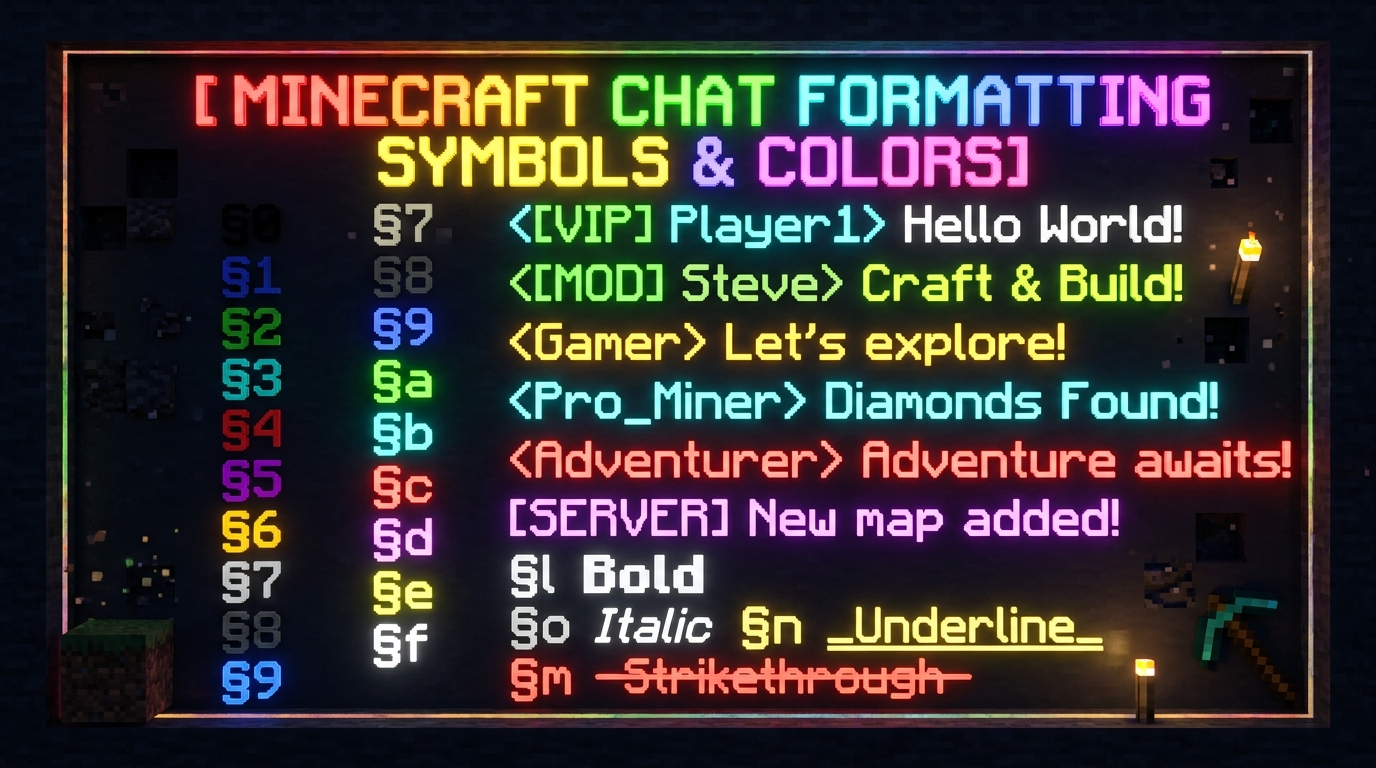
The standard palette was established in Minecraft Classic and represents the foundation of in-game typography. Digits 0 through 9 represent Black (§0), Dark Blue (§1), Dark Green (§2), Dark Aqua (§3), Dark Red (§4), Dark Purple (§5), Gold (§6), Gray (§7), Dark Gray (§8), and Blue (§9). Hexadecimal letters 'a' through 'f' represent Green (§a), Aqua (§b), Red (§c), Light Purple (§d), Yellow (§e), and White (§f).

โ›๏ธ Bedrock Material Color Codes

Bedrock Edition features exclusive material-inspired color codes absent from Java Edition: §g (Minecoin Gold #DDD605), §h (Material Quartz #E3D4D1), §i (Material Iron #CECACA), §j (Material Netherite #443A3B), §m (Material Redstone #971607), §n (Material Copper #B4684D), §p (Material Gold #DEB12D), §q (Material Emerald #47A036), §s (Material Diamond #2CBAA8), §t (Material Lapis #21497B), and §u (Material Amethyst #9A5CC6).

โœจ Style & Formatting Modifiers

Styling codes must always be placed after color codes, because applying a color code automatically resets all preceding styles: §k activates Random Obfuscated characters (magic matrix effect), §l toggles Bold weight, §m applies Strikethrough (Java only), §n creates an Underline (Java only), §o produces Italicized slant, and §r Resets all styles and colors back to the default white.

โŒจ๏ธ How to Type the Section Sign (§) on Windows, Mac, and Mobile

  1. Windows (Desktop Keyboard): Hold down the Alt key and type 0167 on the numeric keypad (NumPad). Alternatively, hold Alt and type 21 on older keyboard layouts.
  2. macOS: Press Option + 6 on standard US keyboards, or Option + Shift + 7 on international ISO layouts.
  3. Android & iOS (Mobile Keyboards): Open the numeric/symbol keyboard, locate the ampersand (&) or letter s key, press and hold (long press) until a pop-up sub-menu appears, then slide your finger over the § glyph.
  4. In-Game Chat Shortcut: When typing in vanilla Java chat, typing § directly is blocked to prevent accidental exploits; instead, use this free Kunj Tools Color Code Maker to generate and copy the formatted string directly to your clipboard.
Code Color Name Hex Value Bedrock Support Java Support Common Server Use
§0 / &0Black#000000YesYesRarely used (unreadable on dark UI)
§1 / &1Dark Blue#0000AAYesYesWater/Ocean rank prefixes
§2 / &2Dark Green#00AA00YesYesEco, Economy, Guild labels
§3 / &3Dark Aqua#00AAAAYesYesServer informational alerts
§4 / &4Dark Red#AA0000YesYesAdmin, Owner, Danger warnings
§5 / &5Dark Purple#AA00AAYesYesVIP, Mythic ranks, Nether lore
§6 / &6Gold#FFAA00YesYesCoins, Server announcements
§7 / &7Gray#AAAAAAYesYesStandard member chat, item stats
§8 / &8Dark Gray#555555YesYesBorders, timestamps, muted text
§9 / &9Blue#5555FFYesYesLinks, Discord mentions, Player tags
§a / &aGreen#55FF55YesYesSuccess confirmations, Online status
§b / &bAqua#55FFFFYesYesTips, helper ranks, whisper channels
§c / &cRed#FF5555YesYesError messages, combat warnings
§d / &dLight Purple#FF55FFYesYesDonator perks, enchanted item names
§e / &eYellow#FFFF55YesYesDefault system messages, highlights
§f / &fWhite#FFFFFFYesYesStandard chat message body
§gMinecoin Gold#DDD605YesNo (Bedrock Only)Bedrock marketplace announcements
§sMaterial Diamond#2CBAA8YesNo (Bedrock Only)Bedrock realm titles & NPC dialogs

โ“ Frequently Asked Questions (Minecraft Text Formatting)

What is the difference between the § section code and the & ampersand code?
The section sign (§) is the internal machine character that Minecraft's game client recognizes natively to tint text. However, because § is hard to type and can get corrupted when editing UTF-8 configuration files on older operating systems, server software like Spigot, Paper, Bukkit, BungeeCord, and plugins like EssentialsX use the standard ampersand (&) as an alias. When an admin types &6Welcome, the server converts it into §6Welcome before broadcasting the packet to players.
Why do my color codes in server.properties display as strange question marks (ç)?
This encoding artifact happens when server.properties is saved in ANSI or Windows-1252 format instead of UTF-8, or because Java properties files historically require Unicode escapes for non-ASCII characters. In modern server software, you should encode the section symbol as Unicode escape \u00A7. For example, write \u00A76My Minecraft Server in the MOTD line of server.properties, which prevents character corruption across any OS reboot.
Can I use full 24-bit 16-million RGB hex color codes in Minecraft?
Yes, since Minecraft 1.16, Java Edition supports full 24-bit RGB hex colors in JSON raw text (e.g., {"text":"Custom","color":"#FF55A2"}) and in modern server plugins that support MiniMessage or BungeeCord hex tags (such as &#FF55A2 or <#FF55A2>). However, legacy signs and Bedrock Edition vanilla chat do not support arbitrary 24-bit hex codes; they are restricted to the 16 core colors plus Bedrock's 11 mineral color codes.
How do I color signs and books without mods?
In Minecraft Java Edition survival mode, you can dye signs by holding any dye in your hand and right-clicking the placed sign. To make the text glow brightly in the dark, right-click the sign with a Glow Ink Sac. In Bedrock Edition, you can directly paste § codes onto signs and into writable books, and the game client will immediately render the color and style in real time.
© 2026 Kunj Tools · Privacy · Terms · About
Not an official Minecraft service. Not approved by or associated with Mojang or Microsoft.

Pack Converter

Convert resource packs between Java and Bedrock editions

Upload
โ–ธ
Review
โ–ธ
Convert
1Conversion Direction
Upload Java Resource Pack
โ˜•
Drop a Java Edition .zip resource pack here
Supports all Java versions (1.6 through 26.1)
3Conversion Preview
4Options
Off by default: vanilla texture overrides already use the vanilla atlas. Random variants write their own entries either way.
Anything the converter can't match is listed in the result, and its original bytes are in the recovery download. Best-guess copies are marked for review. 3D models become .geo.json files that Bedrock won't apply to vanilla blocks by itself (use them in Blockbench or an add-on).

The oldest Bedrock version allowed to load the pack. Texture paths are matched against 1.26.50, so older versions can miss newer blocks.
Converting
Starting conversion...
How To Install
1Download the converted .mcpack file.
2Double-click the .mcpack file - Minecraft will open and import it automatically.
3Go to Settings โ†’ Global Resources and activate the pack.
Note: Not all Java features have Bedrock equivalents. Custom models, shaders, and some advanced features may not convert. The converter will warn you about unsupported content.
๐Ÿ”„ Java to Bedrock Pack Converter Manual & Guide

The Complete Guide to Converting Java Resource Packs to Bedrock (.mcpack)

Minecraft Java Edition and Minecraft Bedrock Edition (formerly Windows 10 & Pocket Edition) share the same blocky aesthetic, but their resource pack architectures are completely different. If you have a favorite Java texture pack (OptiFine textures, PvP packs, faithful textures, or custom soundboards) that you want to play on Bedrock PC, mobile, or console, Kunj Tools Pack Converter (mctools pack converter alternative) automates the entire porting process in seconds โ€” 100% client-side in your browser.

๐Ÿ—‚๏ธ Automated File Hierarchy Translation

Java packs store assets inside deep namespaces like assets/minecraft/textures/block/. Bedrock expects assets in a flatter hierarchy like textures/blocks/. Our converter automatically maps over 3,200 unique texture filenames and folder paths to their exact Bedrock equivalents.

๐ŸŽฌ Animated Texture Conversion (Flipbooks)

In Java, animated textures (like flowing water, lava, fire, and glowing ores) use companion .png.mcmeta JSON files. In Bedrock, all animated textures must be compiled into a central textures/flipbook_textures.json atlas. Our converter compiles these definitions automatically.

๐Ÿš€ How to Convert a Java Pack to Bedrock (Step-by-Step)

1
Upload Your Java Resource Pack (.zip)
Drag and drop your Java .zip resource pack into the dropzone. The converter supports all Java versions from legacy 1.6 all the way to 1.21 Tricky Trials.
2
Review Pack Assets & Conversion Warnings
Click Review Pack. The tool analyzes your archive, counting block textures, item sprites, GUI files, sounds, and animations. Any unsupported files (such as OptiFine CIT or custom Java shaders) will be flagged with transparent warnings.
3
Configure Sound, Language & PBR Options
Toggle sound conversion (OGG parsing), language translation (.json to Bedrock .lang), and PBR shader translation (converting LabPBR normal and smoothness maps into Bedrock RTX MER format).
4
Select Target Bedrock Engine & Download
Choose your target Bedrock version (default is current stable 1.21+). Click Convert & Download. Your new .mcpack file is bundled instantly in your browser's memory without sending a single byte to an external server.

โš–๏ธ Technical Comparison: Java vs. Bedrock Pack Formats

Feature Minecraft Java Edition Minecraft Bedrock Edition Conversion Handling
Pack Manifest pack.mcmeta (pack_format integer) manifest.json (UUID v4 + min_engine_version) Auto-generates cryptographically unique UUIDs
Block Textures assets/minecraft/textures/block/ textures/blocks/ Renames and flattens directory hierarchy
Item Textures assets/minecraft/textures/item/ textures/items/ Maps Java item names to Bedrock item IDs
Animations Individual .png.mcmeta companion files Unified textures/flipbook_textures.json Calculates frame rate and compiles atlas
Sound Events sounds.json event mappings sounds/sound_definitions.json Converts event triggers and channel categories

โ“ Frequently Asked Questions (Pack Converter FAQ)

Can I convert OptiFine custom item textures (CIT) to Bedrock? +
Vanilla Minecraft Bedrock does not natively support OptiFine's CIT (Custom Item Textures) or CEM (Custom Entity Models) because OptiFine is a Java-exclusive mod. While our converter extracts and preserves these texture files in a recovery folder, Bedrock requires custom entity geometry (.geo.json) and attachable scripts to achieve similar results.
Will converted packs work on Minecraft Bedrock for consoles (Xbox/PlayStation/Switch)? +
Yes! If you upload your converted .mcpack to a Minecraft Realm from a Windows PC or mobile device, any player joining that Realm from an Xbox, PlayStation, or Nintendo Switch will automatically download and render the resource pack on their console.
Why are some custom 3D block models missing after conversion? +
Java Edition uses JSON block models (models/block/*.json) for custom 3D shapes. Bedrock Edition uses a completely different proprietary geometry format (*.geo.json). Our converter provides experimental block model translation, but complex multi-part models should be inspected in Blockbench for full Bedrock rendering.
Does the converter reduce texture resolution or quality? +
No. The converter performs 1:1 lossless copying of your PNG textures, audio files, and sprites. Whether your pack is 16ร—16 vanilla resolution, 32ร—32 Faithful, or 512ร—512 ultra-HD, the original pixel fidelity and bit depth are 100% preserved.
© 2026 Kunj Tools · Privacy · Terms · About
Not an official Minecraft service. Not approved by or associated with Mojang or Microsoft.

Pack Merger

Merge, reorder, and customize Bedrock / Java resource packs

Upload
โ–ธ
Customize
โ–ธ
Icon
โ–ธ
Build
1Upload Packs
๐Ÿ“ฆ
Drop .mcpack files here
Add 2+ to merge, or 1 to customize
2Pack Name & Description
3Pack Icon Generator
Upload a skin PNG to auto-extract the head
or fetch by username
0
4Summary
Manifest
๐Ÿ“ฆ Minecraft Texture Pack Merger Guide & Best Practices

How to Merge Multiple Minecraft Texture Packs into One Unified Pack

Running multiple active texture packs in Minecraft often leads to severe game lag, slow world loading, and frustrating visual glitches where one pack accidentally overrides the custom HUD or weapon models of another. With Kunj Tools Pack Merger (mc tools texture pack combiner), you can effortlessly merge, reorder, and deduplicate dozens of .mcpack or Java .zip resource packs into one clean, high-performance master pack.

๐Ÿ” The Priority Override Hierarchy

Just like Minecraft's in-game Resource Packs menu, the pack at the very top of your stack has highest priority. If Pack A (top) and Pack B (bottom) both contain a diamond sword texture, Pack A's sword will be used, while Pack B's missing textures fill in the rest.

๐Ÿ†” Automatic UUID Regeneration

Minecraft Bedrock Edition strictly rejects resource packs with duplicate or conflicting UUIDs in their manifest.json. Our merger generates fresh, cryptographically secure UUIDs for the header and modules to guarantee 100% successful imports.

๐Ÿ”จ Step-by-Step Guide: Merging Your Resource Packs

1
Upload Your Resource Packs
Select Bedrock (.mcpack) or Java (.zip) format. Drop all the packs you want to combine into the upload zone. You can upload PvP packs, faithful textures, sound packs, and custom UI packs simultaneously.
2
Drag to Order Priority Stack
Arrange your packs in order of visual importance. Place fine-detail packs (like custom crosshairs or low-fire overlays) at the top, and broad terrain texture packs at the bottom.
3
Customize Pack Name, Description & Icon
Give your merged creation a custom display title using Minecraft color codes (ยง), write a custom sub-description, and select or upload a custom 64ร—64 pack icon.
4
Forge & Download Your Master Pack
Click โ› Forge Pack. The merger resolves conflicts, compiles animations, merges sound definitions, and downloads your ready-to-play master pack directly in your browser.

๐Ÿ’ก Popular Pack Merger Combinations (Pro Recipes)

โš”๏ธ The Ultimate PvP Pack
Top: Clean dot crosshair + low fire.
Middle: Short swords & clear water.
Bottom: 32ร—32 smooth Faithful base.
๐ŸŒ™ Clean Dark Mode Survival
Top: Translucent dark inventory GUI.
Middle: Visible outlined ores.
Bottom: Vanilla enhanced textures.
๐ŸŽง Custom Audio & Ambience
Top: Custom music discs & hitsounds.
Middle: Quiet Nether portals & pistons.
Bottom: Vanilla HD textures.

โ“ Frequently Asked Questions (Pack Merger FAQ)

Can I merge a Java texture pack with a Bedrock texture pack? +
The Pack Merger is designed to merge packs of the same platform (Bedrock with Bedrock, or Java with Java). If you have a Java pack that you wish to combine with a Bedrock pack, first use our Pack Converter tool to convert the Java pack into Bedrock format, and then merge them together seamlessly!
How does the merger handle duplicate or conflicting texture files? +
When two packs edit the same block or item texture (e.g. textures/blocks/stone.png), the pack positioned higher in your queue always wins. The lower pack's version is discarded to prevent file bloat. Click the Show File Conflicts button on step 4 to view a full breakdown of overridden files.
Will merging packs improve my Minecraft FPS performance? +
Yes! Loading 5 or 10 separate texture packs forces Minecraft to maintain multiple archive handles and calculate texture hierarchies on every frame. Merging them into a single consolidated pack eliminates redundant file reads and significantly reduces game load times and micro-stutters.
Is there a file size limit for merging packs? +
Because all file extraction and compression happens directly in your browser's RAM, there is no artificial file size cap. Modern computers and smartphones can effortlessly merge packs totaling several hundred megabytes in just a few seconds.
© 2026 Kunj Tools · Privacy · Terms · About
Not an official Minecraft service. Not approved by or associated with Mojang or Microsoft.
0 songs

Music Disc Maker

Replace vanilla discs with your own audio.

1. Select a Disc
2. Upload Audio
Select a disc above first
๐ŸŽต
Drop an audio file here or an existing .mcpack
or tap to browse
.ogg .mp3 .wav .m4a .webm - or drop a pack you previously built to keep editing it
3. Pack Settings
How to use

Bedrock: Upload any audio file. It will be included as-is in the pack (Bedrock supports .ogg and .wav natively). For best results, upload .ogg files.
Java: Java Edition requires .ogg (Vorbis) format. If you upload an .ogg file it will be used directly. Other formats will be converted to OGG Vorbis automatically.

Select a disc, upload your audio, and click "Add Song to Pack." Repeat for as many discs as you want, then hit Build!

๐Ÿ’ฟ Custom Music Discs Guide & Audio Standards

How to Create Custom Minecraft Music Disc Resource Packs (Java & Bedrock)

Ever wanted to blast your favorite songs, background music, or custom memes through a Minecraft jukebox? With Kunj Tools Music Disc Maker (mc tools net music disc creator), you can replace any of the 21 vanilla music discs with your own custom audio tracks. Our tool automatically encodes audio into Minecraft's native OGG Vorbis format, updates in-game song title popups, and generates ready-to-use resource packs for both Java Edition and Bedrock Edition โ€” 100% free and client-side.

๐ŸŽต Complete 21 Disc Roster (1.21 Tricky Trials)

Supports every vanilla disc in the game: 13, Cat, Blocks, Chirp, Far, Mall, Mellohi, Stal, Strad, Ward, 11, Wait, Pigstep, Otherside, 5, Relic, Creator, Creator (Music Box), and Precipice. Replace one disc or all 21 in a single unified pack!

๐Ÿ”Š Client-Side OGG Vorbis Audio Encoding

Minecraft Java Edition exclusively plays audio encoded in the OGG Vorbis format at 44.1 kHz. Our built-in WebAssembly audio encoder converts MP3, WAV, FLAC, and M4A files directly in your browser without uploading heavy audio files to remote servers.

๐ŸŽง Step-by-Step Guide: Creating Your Custom Music Pack

1
Select Target Minecraft Platform
Choose between Bedrock Edition (.mcpack) or Java Edition (.zip). Both formats feature automatic disc title renaming so the in-game action bar displays your actual song name when inserted into a jukebox.
2
Pick a Disc & Upload Audio
Select which vinyl disc you want to replace (e.g. Pigstep or Cat). Drop your audio file (MP3, WAV, OGG, or AAC). You can preview the track directly in the browser player before adding it to your pack.
3
Enter Custom Song & Artist Names
Type your custom song title and artist. Our pack compiler writes these strings into en_us.json (Java) and texts/en_US.lang (Bedrock) so your custom metadata appears in-game when hovering over the disc in your inventory.
4
Add More Songs & Build Pack
Click Add Song to Pack. You can repeat this step for as many discs as you like. When finished, click ๐Ÿ’ฟ Build Music Pack to download your ready-to-play resource pack archive.

๐Ÿ“‹ Supported Minecraft Music Discs Reference

Disc Name Java Audio Path Bedrock Audio Path Vanilla Rarity
Pigstep records/pigstep.ogg sounds/music/game/records/pigstep.ogg Rare (Bastion Remnants)
Otherside records/otherside.ogg sounds/music/game/records/otherside.ogg Rare (Strongholds / Dungeons)
Precipice (1.21) records/precipice.ogg sounds/music/game/records/precipice.ogg Trial Chambers (Vaults)
Creator (1.21) records/creator.ogg sounds/music/game/records/creator.ogg Trial Chambers (Ominous Vaults)
Cat / Blocks / Chirp records/cat.ogg, etc. sounds/music/game/records/*.ogg Common (Creeper Drops)

โ“ Frequently Asked Questions (Music Disc Maker FAQ)

Can other players on my multiplayer server hear my custom music? +
Yes! If you are hosting a server or Realm, you can apply your custom music pack as a Server Resource Pack. When other players join the world and accept the server resource pack prompt, they will hear your custom tracks whenever anyone plays a jukebox!
How far away can players hear jukebox music in Minecraft? +
Vanilla Minecraft jukeboxes have a spherical sound radius of exactly 64 blocks. The volume smoothly attenuates (fades out) as you walk further away from the jukebox block.
What audio format is best to upload? +
While Kunj Tools accepts MP3, WAV, AAC, and FLAC, uploading OGG Vorbis files directly is fastest because it bypasses in-browser re-encoding. For ideal quality and small pack size, 128 kbps or 160 kbps stereo OGG at 44.1 kHz is recommended.
Why does my song stop playing early on Minecraft Bedrock? +
In vanilla Bedrock Edition, standard resource packs inherit the original track duration of the vanilla disc (e.g. 13 is 2m 58s). If your song is longer than the vanilla disc length, click the โšก Download as Addon button in our tool โ€” this generates a Bedrock behavior pack that unlocks unlimited track lengths!
© 2026 Kunj Tools · Privacy · Terms · About
Not an official Minecraft service. Not approved by or associated with Mojang or Microsoft.

Totem Generator

Turn any skin into a custom Totem of Undying

Upload Skin
๐Ÿ—ก๏ธ
Drop a skin PNG or click to browse
64ร—64 / 64ร—32 / 128ร—128
or fetch by username
What is this?

The Totem of Undying normally has a default texture. This tool replaces it with a "Mini Me" version of your skin - so when you hold a totem in-game, it shows you. Download as .mcpack to import directly into Minecraft Bedrock, or as a raw PNG to use in a resource pack.

โš”๏ธ Custom Totem of Undying Generator Guide

How to Make a Custom Totem of Undying from Any Minecraft Skin

The Totem of Undying is one of the most iconic survival items in Minecraft. When fatal damage strikes, holding a totem triggers a life-saving burst of regeneration, fire resistance, and golden absorption hearts accompanied by an epic on-screen pop animation. With Kunj Tools Totem Generator, you can transform your custom skin into a personalized "Mini-Me" Totem of Undying โ€” available in both lightweight 2D pixel styles and full 3D rotatable models for Java and Bedrock Edition.

๐Ÿ—ก๏ธ 2D Pixel Item vs. 3D Mini-Me Model

Choose between classic 2D Pixel Art (which renders your character's head and wings as an item icon in your hotbar) or the revolutionary 3D Model Style (which renders an animated mini figurine standing in your offhand).

โœจ Dual-Layer Overlay Support

Our generator automatically samples both the Base Layer and Outer Layer of your Minecraft skin, ensuring your custom totem preserves 3D goggles, hair fringes, crowns, headphones, and jackets with pixel-perfect clarity.

๐Ÿš€ How to Generate and Install Your Custom Totem

1
Upload Skin or Fetch by Username
Drop your 64ร—64 Minecraft skin PNG file, or type any Java/Bedrock gamertag to pull your current multiplayer skin automatically.
2
Choose Your Visual Style
Toggle between 2D Classic, Square, Mini Me (with golden wings), or the immersive 3D Model format. Preview the result live in the interactive 3D viewer.
3
Select Output Format
For Minecraft Bedrock (PC, iOS, Android, Consoles), download the .mcpack resource pack. For Java Edition, download the Java .zip or grab the standalone transparent PNG texture.
4
Activate in Minecraft & Test In-Game
Open the pack in Minecraft, activate it under Global Resources, and place a Totem of Undying in your offhand. When activated, your personalized character will fly across your screen!

โ“ Frequently Asked Questions (Custom Totem FAQ)

Does holding a custom totem change the resurrection sound effect or particles? +
By default, custom totems replace the visual model and HUD pop animation. The golden and emerald potion particles remain completely vanilla. You can also combine your custom totem with our HUD Customizer and Music Disc Maker to add custom pop sounds!
Will other players see my custom totem in multiplayer? +
If you apply the resource pack locally on your own client, only you will see your custom totem. However, if a server administrator or Realm host sets your custom totem pack as the World Resource Pack, every player in the server will see your custom totem when held!
Where is the totem texture located in Minecraft Java resource packs? +
In Minecraft Java Edition, the totem texture is stored at assets/minecraft/textures/item/totem_of_undying.png. In Bedrock Edition, it is located at textures/items/totem.png.
Is the 3D Totem style compatible with popular Bedrock PvP texture packs? +
Yes! Kunj Tools generates 3D totems with standard attachable definitions compatible with Bedrock Tweaks, Actions & Stuff, and popular PvP client packs. Simply ensure the custom totem pack is placed higher in your active resource pack list.
© 2026 Kunj Tools · Privacy · Terms · About
Not an official Minecraft service. Not approved by or associated with Mojang or Microsoft.

Avatar Maker

3D heads, busts, and full-body Minecraft avatars with custom backgrounds

Load Skin
or
๐Ÿ“ Click or drag a skin here
Choose Style
Customize & Preview
Download
๐Ÿ‘ค 3D Minecraft Avatar & PFP Studio Guide

How to Generate 3D Minecraft Profile Pictures & Avatars from Any Skin

Elevate your online presence across Discord, YouTube, Twitch, Reddit, and TikTok with a custom, studio-lit 3D Minecraft avatar. With Kunj Tools Avatar Maker (mc tools avatar generator alternative), you can convert any Minecraft skin or public gamertag into a high-resolution isometric head, character bust, full-body render, or cute mini-figure โ€” exported as a crisp, transparent PNG with zero watermarks.

๐ŸŽญ 4 Distinct Render Perspectives

Generate clean Isometric Heads (ideal for server icons and small forum badges), Character Busts (the gold standard for YouTube and Discord PFPs), Full Body Poses, and Chibi Mini-Me figures.

๐Ÿ’ก Dynamic Three-Point Studio Lighting

Our WebGL canvas renders custom key lights, fill lights, and rim highlights with ambient occlusion, giving your pixel skin dramatic depth and professional shadow gradients.

๐Ÿ“ธ How to Create the Perfect Discord PFP (Step-by-Step)

1
Enter Gamertag or Upload Skin PNG
Type your Minecraft username to fetch your skin directly from Mojang servers, or upload any 64ร—64 PNG skin file from your device.
2
Choose Avatar Style & Angle
Click between Head, Bust, Full Body, or Mini. Click and drag on the interactive 3D canvas to rotate the model to your favorite heroic angle.
3
Customize Background & Lighting
Pick a solid color, vibrant gradient, or leave it Transparent so you can place your render over Discord banners, thumbnail templates, or stream overlays.
4
Download High-Resolution PNG
Choose your export resolution (up to 1024ร—1024 HD) and click Download Avatar. Instant, crisp, and watermark-free!

โ“ Frequently Asked Questions (Avatar Maker FAQ)

What resolution is best for a Discord profile picture? +
Discord recommends an image resolution of at least 512ร—512 pixels. We recommend exporting at 512ร—512 or 1024ร—1024 for crystal-clear fidelity on high-density Retina and 4K screens.
Does the Avatar Maker render skin overlay layers (jackets and hats)? +
Yes! Our 3D renderer fully samples both the base layer and outer overlay layer. Headphones, glasses, crowns, hoodies, and floating hair bangs render in full 3D with realistic depth.
Can I use these avatars commercially for YouTube or Twitch? +
Yes, 100%! All avatars generated on Kunj Tools are completely free for personal and commercial use on your YouTube channel, Twitch streams, Discord servers, and social media banners.
© 2026 Kunj Tools · Privacy · Terms · About
Not an official Minecraft service. Not approved by or associated with Mojang or Microsoft.
0 skins

Skin Pack Maker

Bundle multiple skins into a single pack with slim/classic support

1Skin Pack Info
2Add Skins
๐Ÿง
Drop skin PNGs here
64ร—64, 64ร—32, or 128ร—128
or fetch by username
Skin Overlays -
Load a base skin, pick overlays to add to your skin pack. Click a preview to select it.
- or -
Bedrock Creator Manual

The Complete Minecraft Bedrock Skin Pack Maker (.mcpack) Guide

Unlike Minecraft Java Edition where players upload individual 64×64 PNG textures directly to their Mojang profile via Minecraft.net or the official launcher, Minecraft Bedrock Edition (Windows 10/11, iOS, Android, Xbox, PlayStation, Nintendo Switch) features a native Skin Pack architecture. By packaging multiple skins into an archived .mcpack manifest bundle, creators and players can access an entire curated wardrobe directly from the in-game Dressing Room without restarting the game or losing connection to active multiplayer Realms and servers.

๐Ÿง Classic (4px) vs. Slim (3px) Arm Geometry

Bedrock Edition strictly enforces player model geometry inside its internal skins.json registry. Classic skins (Steve archetype) require "geometry": "geometry.humanoid.custom" featuring 4-pixel arm width, whereas Slim skins (Alex archetype) require "geometry": "geometry.humanoid.customSlim" featuring 3-pixel arm width. Assigning classic geometry to a slim skin causes jarring black lines or missing shoulder pixels; Kunj Tools detects arm dimensions automatically to ensure seamless rendering.

๐Ÿ“ฆ One-Click .MCPACK Bundle Architecture

A compliant Bedrock skin pack requires four interconnected components: a root manifest.json holding twin cryptographic Version 4 UUIDs (one for the resource header, one for the module), a skins.json mapping texture filenames to localization identifiers, a texts/en_US.lang string catalog that displays skin names inside the Dressing Room UI, and 64×64 or 128×128 PNG textures. Our client-side builder synthesizes and validates all manifests automatically.

๐Ÿฆบ Custom Overlays & Preset Wardrobe Suits

Want to turn your standard casual skin into an astronaut, royal king, tuxedo-wearing gentleman, or diamond knight? The built-in Kunj Tools Overlay Engine lets you upload any base skin and automatically stamp semi-transparent dual-layer outfits on top. These overlays populate the hat, jacket, sleeves, and pants UV coordinates without overwriting your facial features or original hair pixels.

๐Ÿš€ How to Build and Install a Custom Bedrock Skin Pack in 5 Steps

  1. Enter Pack Metadata: Give your skin pack a descriptive name (e.g., “§bKunj§f PvP Skin Collection”) and add an optional short description. You can format the title with Minecraft color codes for vibrant Dressing Room typography.
  2. Add Skin Textures: Drag and drop up to 100 PNG skin files into the dropzone, or fetch skins directly by typing Minecraft Java or Bedrock gamertags (e.g., Notch, Technoblade).
  3. Configure Model Geometry: Review each imported skin in the list. Ensure the toggle correctly reflects Classic (Steve 4px) or Slim (Alex 3px) so the arms render without clipping.
  4. Compile the .mcpack File: Click “Build Skin Pack”. The browser compiles your textures, generates valid cryptographic UUIDs, creates skins.json, and downloads a self-contained .mcpack file.
  5. One-Click Install: On Windows, double-click the downloaded .mcpack file to launch Minecraft and trigger automatic import. On Android and iOS, tap the file in your downloads folder and select “Open with Minecraft”. Head to the Dressing Room → Classic Skins → Owned Packs to equip your skins!
Platform Installation Path / Method Multiplayer Visibility Required Format
Windows 10 / 11Double-click .mcpack → Auto imports into com.mojang/skin_packsFull (Servers, Realms, LAN).mcpack / .zip
Android (APK / Play Store)Tap file → Share / Open with MinecraftFull (Servers, Realms, LAN).mcpack
iOS / iPadOSFiles App → Tap .mcpack → Minecraft opens automaticallyFull (Servers, Realms, LAN).mcpack
Xbox One / Series X|STransfer via FTP / File Explorer app into development storageLocal & LAN worldsExtracted folder

โ“ Frequently Asked Questions (Minecraft Bedrock Skin Packs)

Will other players on public Bedrock servers see my custom skin?
Yes! On featured Bedrock servers (The Hive, Cubecraft, Mineplex, Galaxite) and private Realms, other players will see your custom skin provided they do not have “Only Allow Trusted Skins” enabled in their video/profile settings. Bedrock replicates the active skin texture from your imported skin pack across the multiplayer network.
Why does Minecraft show “Import Failed - Duplicate Pack Detected”?
Every Bedrock skin pack must have a unique UUID in its manifest.json. If you edit a skin pack and try to re-import it without changing the UUID or version number, Bedrock will reject the file as a duplicate. Kunj Tools generates a brand-new, random RFC-4122 Version 4 UUID on every single build, completely preventing duplicate pack errors.
Can I include both 64×64 standard and 128×128 HD skins in the same pack?
Yes. Minecraft Bedrock natively supports mixed resolution skin packs. You can bundle standard 64×64 pixel art skins alongside high-resolution 128×128 HD skins within the same .mcpack without causing texture misalignment.
Why are parts of my skin showing up as pure black or transparent in-game?
This happens if transparent pixels exist on the inner base layer of the head, torso, or legs (which vanilla Minecraft renders as solid black to prevent invisible player cheats), or if a 64×32 legacy format skin was assigned modern dual-layer geometry. Our builder automatically normalizes legacy layouts into modern 64×64 dual-layer RGBA textures before compiling.
© 2026 Kunj Tools · Privacy · Terms · About
Not an official Minecraft service. Not approved by or associated with Mojang or Microsoft.
0 skins

Cape Pack Builder

Assign custom capes to skins and build a ready-to-import pack

Pick one or more capes below. The pack shows your chosen cape on whatever cape you already have equipped, so you'll need any owned cape equipped in the dressing room first. It's client-side only, so other players won't see it, and it works on mobile and console via a normal .mcpack import. Resource pack only, no behavior pack, so it's achievement-safe. Pick multiple capes and you can switch between them in the pack's settings in-game.
โž•
Add your own cape โ€“ drop image(s) or click to browse
1Pack Settings
Saved Packs
Every build is saved here too. Double-click a name to rename it.
No saved packs yet. Build or save a pack and it shows up here.
2Skins
๐Ÿง
Drop skin PNGs or .mcpack/.zip packs
Skin images (64ร—64, 128ร—128) or skin packs
or fetch by username
3Capes
๐Ÿงฅ
Drop cape PNGs here
64ร—32 cape textures
or pick from gallery
4Cape Assignments
Each skin+cape combo creates a selectable entry in-game. Toggle capes on/off per skin, or use the quick-assign buttons.
Add skins and capes above to start assigning.
How To Install
1Download the .zip file generated above.
2Extract the folder inside the zip.
3Navigate to this path (click to copy):
C:\XboxGames\Minecraft for Windows\Content\data\skin_packs\
4Drag the extracted folder into skin_packs. Replace files if prompted.
5Launch Minecraft and find your capes in the Classic Skins menu.
Not showing up? You may need to remove any other custom skin packs you've installed. Delete all folders in:
C:\Users\{User}\AppData\Roaming\Minecraft Bedrock\Users\{Numbers}\games\com.mojang\skin_packs
How To Install (Mobile / Console)
1Download the .mcpack file generated above.
2Open the downloaded .mcpack file. Minecraft will launch and import it automatically.
3In your world's settings, go to Global Resources and activate the pack.
4Make sure you have any owned cape equipped in the dressing room, then jump in. Your custom cape replaces it.
Video Tutorial

Need more help? Watch this step-by-step guide.

Custom Capes Tutorial
Minecraft Cape Engineering

The Complete Minecraft Bedrock Cape Pack Builder Manual (.mcpack)

Capes are among the rarest and most prestigious cosmetics in Minecraft history, traditionally reserved for Minecon attendees, Mojang employees, official event participants, or special milestone celebrations. With the Kunj Tools Cape Pack Builder, Minecraft Bedrock Edition players on Windows 10/11, Android, iOS, and consoles can construct custom .mcpack cape packages. Whether you are attaching custom capes directly to your favorite skins or substituting your owned Dressing Room cape textures via client-side subpacks, our tool automates the intricate geometry rigging and manifest creation.

๐Ÿงต Skin-Rigged Capes vs. Subpack Overrides

Our builder supports two primary modes. In Desktop / Skin Mode, the builder binds individual custom cape textures directly to player skins in a custom skins.json manifest, making your cape display on all worlds and servers that allow custom skins. In Mobile / Console Mode, the builder creates a pure resource pack that overrides whichever cape you already own in the Dressing Room (such as the Pancape or 15th Anniversary Cape), complete with in-game slider subpacks so you can swap capes inside video settings without leaving your realm.

๐Ÿชฝ Synchronized 3D Elytra Wing Physics

In vanilla Minecraft, equipping an Elytra while wearing an active cape dynamically morphs the Elytra wings into a matching custom texture scheme derived from the cape's palette. Kunj Tools automatically maps and renders the corresponding Elytra UV coordinates, ensuring your wings match your cape whether you are walking on the ground or rocketing through the sky with fireworks.

๐Ÿ† 100% Achievement & Realm Safe

Because the generated .mcpack relies strictly on client-side resource pack definitions and skin geometry overrides without introducing script engines or behavior packs, activating custom capes does not disable Xbox Live Achievements, trophies, or Realm compatibility. You can explore survival worlds while showing off your custom cape.

๐Ÿ› ๏ธ Step-by-Step: How to Build and Apply Custom Bedrock Capes

  1. Choose Your Architecture Mode: If you play primarily on Windows PC and want unique capes assigned per-skin, keep desktop mode active. If you play on iPhone, iPad, Android, or console, tick “On mobile?” to activate the universal resource pack override mode.
  2. Upload or Select Capes: Pick from our curated library of legendary capes (Minecon 2011โ€“2016, Cherry Blossom, Mojang Studios, Founder's Cape, TikTok/Twitch capes) or upload your own 64×32 PNG cape texture designed in our Cape Editor.
  3. Assign to Skins: In desktop mode, upload your player skins and select which cape each skin should wear. You can also fetch skins by typing any Java or Bedrock username.
  4. Configure Pack Version & Manifest: Set your pack name and version number. Incrementing the version number (e.g., 1.0.1) allows you to update existing packs without triggering duplicate ID conflicts.
  5. Compile and Import into Minecraft: Click “Build Cape Pack” to generate your .mcpack. Open the file on your device to trigger auto-import, navigate to Settings → Global Resources (or the Dressing Room), and activate your new cape!
Cape Surface UV Canvas Resolution Pixel Coordinates (X, Y) Visual In-Game Location
Front Face (Towards Back)10 × 16 pixelsX: 1, Y: 1 to X: 11, Y: 17Visible directly behind player torso
Back Face (Outward)10 × 16 pixelsX: 12, Y: 1 to X: 22, Y: 17Exterior surface facing other players
Left / Right Sides2 × 16 pixelsX: 0, Y: 1 & X: 11, Y: 1Side seams and fabric thickness
Top / Bottom Seams10 × 1 pixelsX: 1, Y: 0 & X: 11, Y: 0Neckline collar & hem at the bottom
Matching Elytra Texture64 × 32 pixelsFull canvas split wingsLeft & right glider wings in flight

โ“ Frequently Asked Questions (Minecraft Cape Packs)

Can other players see my custom cape on Bedrock servers?
When using Desktop Skin-Rigged mode on servers that allow custom skins, players who have “Only Allow Trusted Skins” turned OFF will see your custom skin and cape. When using Mobile Resource Pack mode, cape changes are rendered client-side on your screen (replacing whatever cape you have equipped in your Dressing Room). To have everyone on PC see any cape without skin restrictions, you can also use our free companion tool EZCAPES.
Do I need to own an official cape first to use the Mobile Cape mode?
Yes, for the Mobile/Console subpack override method, you must have at least one cape equipped in the Bedrock Dressing Room (such as the free Pancape, which is unlocked for all players). The pack then intercepts that cape slot and dynamically swaps the texture to your selected design.
Can I design my own cape and use it here?
Absolutely. You can use our built-in 3D Cape Editor to draw custom pixel art, gradients, logos, and emblems. Once finished, click “Download Cape PNG” and drop it straight into this Cape Pack Builder to compile your ready-to-use pack.
Why does my cape look distorted or stretch sideways?
Minecraft cape textures must follow strict 64×32 pixel dimensions with the cape artwork positioned on the top-left 22×17 pixel area. If you upload an arbitrary rectangular photo or square 64×64 skin file into a cape slot, the game UV mapper will stretch it incorrectly. Always use standard 64×32 cape templates generated by our Cape Editor.
© 2026 Kunj Tools · Privacy · Terms · About
Not an official Minecraft service. Not approved by or associated with Mojang or Microsoft.

Cape Editor

Draw and edit custom Minecraft capes pixel-by-pixel

Cape Texture (64ร—32)
Tools
Color
(gradient)
50
Layers
3D Cape & Elytra Studio

The Complete Minecraft 3D Cape & Elytra Design Guide

Designing a standout Minecraft cape requires precise pixel-level craftsmanship. Because a cape is viewed by thousands of players as you run, sprint, and fly through multiplayer servers, understanding the 64×32 texture map layout and how flat 2D pixels drape across a 3D animated mesh is essential. The Kunj Tools Cape Editor provides a browser-based pixel studio featuring multi-layer drawing, color palettes, gradient generators, real-time 3D cape physics simulation, and an interactive 3D Elytra wing painter.

๐Ÿ“ 64×32 Pixel Anatomy & UV Mapping

A Minecraft cape texture file is strictly 64×32 pixels. The active cape model occupies only the top-left region: the front face (10×16 px), back face (10×16 px), left and right edges (2×16 px each), top edge (10×1 px), and bottom edge (10×1 px). The remaining canvas area is utilized by Elytra wing mapping. Our editor superimposes an alignment overlay so you never draw outside active boundaries.

๐ŸŽจ Multi-Layer Studio & Gradient Engine

Professional pixel artists rely on layering to separate background color gradients from emblems, logos, and borders. Kunj Tools supports unlimited canvas layers with reordering and visibility toggles, an eyedropper color sampler, line tools, flood fill, and dual-stop vertical and horizontal linear gradient tools for hyper-realistic metallic or cosmic banner effects.

๐Ÿชฝ Real-Time 3D Cape & Elytra Rendering

Switch between the flat 2D pixel grid and our interactive 3D WebGL viewport at any time. Rotate your player model 360 degrees to inspect how your cape billows from behind, or toggle the 3D Elytra Mode to inspect how the game engine mirrors and folds your custom palette across glider wings during flight animations.

๐Ÿ–Œ๏ธ Pro Tips for Designing High-Impact Minecraft Capes

  1. Establish High-Contrast Silhouettes: Because capes are viewed from a distance on servers, avoid overly noisy micro-details. A bold emblem, central crest, or sharp geometric chevron stands out far more effectively than intricate 1-pixel scribbles.
  2. Implement Pillow Shading & Edge Highlighting: Keep the light source consistent. Adding a 1-pixel highlight along the top and left edges, paired with a subtle shadow along the bottom and right edges, gives the fabric dimensional depth.
  3. Match the Front & Back Seams: Always inspect the side and top rim textures. If the back of your cape is dark obsidian but the front is bright red, make sure the 2-pixel side border transitions smoothly to prevent jarring edge seams.
  4. Check the In-Game Model Perspective: Equip your skin beneath the cape in the 3D preview. Verify that your player's hair, quiver, or armor texture does not clash with the cape's primary tones.
  5. Export Ready-to-Use PNG: Click “Download Cape PNG” to save the standardized 64×32 texture, then feed it into our Cape Pack Builder to generate a playable .mcpack for Minecraft Bedrock or load it into EZCAPES for PC.
Tool / Feature Shortcut Primary Function Best Use Case
Pen / PencilPSingle-pixel precision coloringEmblem outlines, crests, pixel art
EraserEClears pixels to transparent RGBATrimming edges & fixing mistakes
Bucket FillGFills contiguous color zonesBase coats and solid background blocks
Color ReplaceRSwaps identical color across canvasRecoloring entire cape palettes
Linear GradientDBlends Color A into Color BSunset fades, sky banners, glow effects
EyedropperISamples pixel color directlyColor matching across skins & capes

โ“ Frequently Asked Questions (Minecraft Cape Designer)

Can I import existing cape textures or Minecon capes into the editor?
Yes. Click the “Import PNG” button to upload any official 64×32 cape file (such as Minecon 2011โ€“2016, Vanilla Cape, Migrator Cape, or Cherry Blossom Cape) to inspect its pixel layout, customize its colors, or add your own team insignia.
Why does the cape canvas have empty blank space on the right side?
In Minecraft's official UV texture specification, cape textures must be 64×32 pixels wide. However, the humanoid cape model only reads the top-left 22×17 pixels. The remaining canvas area is either reserved by the game engine for Elytra mapping or left transparent. Do not resize or crop the 64×32 canvas, or the game will fail to render the cape.
How do I put my custom cape onto my character in Minecraft?
Once you finish drawing your cape, click “Download Cape PNG”. Then head over to our free Cape Pack Builder tool on Kunj Tools. Upload your cape PNG alongside your skin, click “Build Cape Pack”, and import the resulting .mcpack directly into Minecraft Bedrock!
Can I use semi-transparent (translucent) pixels on a Minecraft cape?
Minecraft's vanilla cape shader does not support alpha blending / semi-transparency. Pixels must either be 100% opaque or 100% transparent. If you draw semi-transparent pixels, the Minecraft renderer will either treat them as completely solid or drop them. We recommend using solid pixel art techniques with dithering for shading.
© 2026 Kunj Tools · Privacy · Terms · About
Not an official Minecraft service. Not approved by or associated with Mojang or Microsoft.

3D Skin Editor

Paint directly on a rotatable 3D model - fetch, edit, export

Loading Skin EditorLoading Skin Editor...
๐ŸŽจ 3D Minecraft Skin Editor Guide & Tutorial

How to Create and Edit Minecraft Skins in Full 3D (Java & Bedrock)

Whether you're crafting a custom persona from scratch, updating your existing character with a new outfit, or stealing a public gamertag skin for inspiration, Kunj Tools 3D Skin Editor (mctools skin editor alternative) gives you complete creative control. Paint directly on a high-precision, rotatable 3D model with layer isolation, color palettes, undo history, and instant PNG export โ€” 100% free with no downloads needed.

๐Ÿง Classic (4px) vs. Slim (3px) Geometry

Minecraft supports two primary humanoid models: Classic (Steve) with 4-pixel wide arms, and Slim (Alex) with 3-pixel wide arms. Choosing the correct model type in our top toolbar ensures your skin renders without stretched or black shoulder seams.

๐Ÿงฅ Inner vs. Outer Layer Overlays

Minecraft skins feature two layers: the Base Layer (which must be 100% opaque solid pixels) and the Outer Layer (which supports transparency for headphones, hoodies, armor, glasses, and floating hair bangs).

๐Ÿ–Œ๏ธ Step-by-Step Guide: Crafting Your First Custom 3D Skin

1
Select Model Type or Load a Base Skin
Pick between Classic (4px) or Slim (3px) arms. You can start with a blank Steve/Alex canvas, upload an existing PNG file from your computer, or type any Java/Bedrock gamertag into the "Steal Skin" input to load their current in-game skin instantly.
2
Isolate Body Parts for Clean Joint Painting
Painting inner arm sockets and the bottom of the head can be tricky on a full body. Click the limb toggle buttons in the side panel to hide the torso or legs, allowing you to rotate the camera and paint hard-to-reach joint faces with pixel precision.
3
Design the Base Body & Face
Set your layer selector to Base Layer. Paint skin tones, eyes, mouth, and fundamental undergarments. Remember that base layer pixels must never be transparent, as Minecraft renders transparent base pixels as solid pitch-black in-game.
4
Add Depth with the Outer Overlay Layer
Switch the layer toggle to Outer Layer (or Both). Paint jackets, collars, belts, boots, and 3D hair strands. The outer layer hovers 0.5 pixels above the character mesh in-game, giving your avatar incredible visual depth.
5
Export and Apply in Minecraft
Click Export PNG to download your standard 64ร—64 RGBA texture. In Minecraft Java Edition, upload it in the official Minecraft Launcher under Skins. In Bedrock Edition, open the Dressing Room โ†’ Edit Character โ†’ Classic Skins โ†’ Choose New Skin.

๐Ÿ“ Standard 64ร—64 Skin Texture Map Coordinates

Understanding where each body part maps on the raw 64ร—64 PNG texture is invaluable for advanced skin artists:

Body Part Base Layer UV Position Outer Layer (Overlay) UV Standard Pixel Dimensions
Head & Helmet (0, 0) to (32, 16) (32, 0) to (64, 16) 8ร—8ร—8 cube (6 faces)
Torso & Jacket (16, 16) to (40, 32) (16, 32) to (40, 48) 8ร—12ร—4 rectangular cuboid
Right Arm & Sleeve (40, 16) to (56, 32) (40, 32) to (56, 48) 4ร—12ร—4 (Classic) or 3ร—12ร—4 (Slim)
Left Arm & Sleeve (32, 48) to (48, 64) (48, 48) to (64, 64) 4ร—12ร—4 (Classic) or 3ร—12ร—4 (Slim)
Right Leg & Pants (0, 16) to (16, 32) (0, 32) to (16, 48) 4ร—12ร—4 rectangular cuboid
Left Leg & Pants (16, 48) to (32, 64) (0, 48) to (16, 64) 4ร—12ร—4 rectangular cuboid

โ“ Frequently Asked Questions (3D Skin Editor FAQ)

Can I edit Bedrock Edition skins as well as Java Edition skins? +
Yes! Both Minecraft Java Edition and Minecraft Bedrock Edition utilize the exact same 64ร—64 pixel RGBA skin layout. Any skin created or exported from Kunj Tools can be applied in Java via the Minecraft Launcher or minecraft.net, and in Bedrock Edition via the in-game Dressing Room.
Why does part of my skin turn pitch black in-game? +
In Minecraft, the Base Layer cannot contain transparent or semi-transparent pixels. If you accidentally erase a pixel on the base layer instead of painting over it, the game engine will automatically fill that transparent pixel with solid black. Always make sure your base layer is 100% filled, and use the Outer Layer for any transparent details.
How does the Username Skin Grabber work? +
Simply type any registered Minecraft player's username into the "Steal Skin" input and click Grab. Our system queries Mojang's official public API to fetch their latest skin texture and loads it directly onto your 3D canvas so you can inspect, edit, or customize it.
What keyboard shortcuts are available in the 3D editor? +
Kunj Tools features intuitive hotkeys: B or P for Pencil, E for Eraser, F for Paint Bucket / Fill, I for Eyedropper / Color Picker, M for Symmetry / Mirror Mode, [ and ] for Brush Size, Ctrl+Z for Undo, and Ctrl+Shift+Z for Redo.
© 2026 Kunj Tools · Privacy · Terms · About
Not an official Minecraft service. Not approved by or associated with Mojang or Microsoft.
0 heads

Custom Player Heads

Wear them, place them, or earn them from traders or kills - Bedrock addon

1Pack Settings
2How Players Get the Heads

Pick how players get the heads. You can turn on more than one.

Your heads get added to every trader's offers.

3Add Heads
๐ŸŽญ
Drop skin PNGs or an existing .mcaddon here - or click to browse
64ร—64 or 64ร—32 PNGs ยท or drop a pack you previously built to keep editing it
or fetch by username
No heads yet. Drop a skin PNG above or fetch by username.
How To Install
1Download the .mcaddon file built above.
2Double-click the .mcaddon - Minecraft will open and import both the resource pack and behavior pack automatically.
3Create or edit a world, then under Behavior Packs activate the pack ending in BP. The matching RP usually auto-activates; if not, turn it on under Resource Packs.
4Enter the world - find your heads in creative under the Items tab, or earn them in survival depending on which mode you picked.
Minimum Bedrock version: 1.26.10. Older versions will reject the pack on import.
How to use / FAQโ–พ

Placing a head: right-click a block to set it down.
Wearing a head: drag it into your helmet slot.
Trader mode: heads show up in trader offers.
Drop on Death: heads drop when that player dies.
Charged Creeper Kill: heads drop if a charged creeper kills that player.

Bedrock Add-on & Trophy Manual

The Complete Minecraft Bedrock Custom Player Heads Add-on Guide

In Minecraft Java Edition, server administrators and players have long utilized NBT data tags like /give @p player_head{SkullOwner:"Notch"} to display personalized player skulls as trophies, decorative interior items, and realm monuments. In Minecraft Bedrock Edition, however, player heads have historically been limited to vanilla mob skulls (Zombie, Skeleton, Wither Skeleton, Creeper, Dragon, and Piglin). The Kunj Tools Player Heads Generator solves this limitation by creating a native Bedrock Behavior and Resource pack add-on that introduces true 3D wearable, placeable, and tradeable player heads for any player gamertag.

๐Ÿชจ True Placeable 3D Blocks & Wearable Helmets

The compiled heads are fully integrated Bedrock entities. You can place them on floors, walls, and shelves with 16-direction rotational alignment like vanilla skulls, or equip them directly into your character's helmet armor slot. The model incorporates both the primary 8×8×8 head cube and the secondary 3D outer hat layer, ensuring textured hair, goggles, crowns, and helmets pop in full stereoscopic 3D.

โš–๏ธ Survival-Friendly Acquisition Mechanics

Choose exactly how heads enter your survival world. In Wandering Trader Mode, traders spawn offering player heads in exchange for customizable prices (e.g., 5 Emeralds or 1 Diamond). In PvP Drop on Death Mode, defeating another player drops their head as loot. In Charged Creeper Mode, tricking a supercharged lightning creeper into exploding next to a player drops their severed trophy skull.

๐Ÿ“ฆ Clean Namespace & Multiplayer Replication

Every generated add-on utilizes an isolated custom namespace (default kunj:head_*) that avoids vanilla identifier collisions. The heads replicate across Bedrock dedicated servers and Realms so every member of your SMP can collect their teammates' heads, mount them on armor stands, or build Hall-of-Fame trophy dioramas.

๐Ÿ† Step-by-Step: Generating and Installing a Player Heads Add-on

  1. Select In-Game Acquisition Mode: Choose whether players acquire heads through Wandering Trader shop offers, direct PvP death drops, or charged creeper detonations.
  2. Import Player Skins: Enter Minecraft Java usernames or Bedrock gamertags (e.g., your SMP friends or favorite creators) to automatically fetch their head skins, or upload custom skin PNGs manually.
  3. Configure Economy & Pricing: If using Wandering Trader mode, select the currency item (Emerald, Diamond, Gold Ingot, Iron Ingot) and set the required count (1 to 64).
  4. Build the .mcaddon Package: Click “Build Player Heads Pack” to generate an integrated .mcaddon bundle containing matching Resource and Behavior packs.
  5. Apply to Your World: Double-click the .mcaddon on Windows or open with Minecraft on Android/iOS. In world settings, activate the pack under both Resource Packs and Behavior Packs, ensure Holiday Creator Features or Beta APIs are toggled on if required by your game version, and launch your world!
Acquisition Method Required World Toggles Survival Balance Best For
Wandering TraderNone (Vanilla Mechanics)High (Costs Emeralds/Diamonds)Peaceful / Economy SMPs
Drop on Death (PvP)Experimental Scripts / LootHardcore / CompetitiveFactions, Anarchy, PvP Arenas
Charged Creeper KillVanilla Mob BehaviorsVery Hard / Trophy HuntLong-term Vanilla Survival Worlds
Creative Inventory / /giveCheats Enabled (/give @s kunj:head_*)Instant SandboxMapmakers & Builders

โ“ Frequently Asked Questions (Custom Player Heads in Bedrock)

Can I place player heads as blocks in Bedrock Edition?
Yes. The add-on defines custom blocks utilizing Bedrock geometry models. You can place them on any solid surface, table, armor stand, or shelf. They feature complete collision boxes matching vanilla mob skulls.
Does this add-on require Experimental Gameplay toggles?
For custom block models and custom wandering trader trade tables in Minecraft 1.20 and 1.21, we recommend enabling “Holiday Creator Features” or “Custom Biomes / Upcoming Creator Features” in your world settings to guarantee all custom geometry registers properly.
What happens if a player changes their skin later?
The add-on bakes the skin texture at the moment of build into the pack's textures/blocks/ directory. This preserves the player's skull as a permanent historical relic of that era, even if they change their skin online next week. To update their head, simply rebuild the pack with their new skin.
Can I use this on a Bedrock Realm?
Yes. As world owner, activate both the Resource Pack and Behavior Pack in your local world settings, then upload the world to your Realm. When players join the Realm, they will be prompted to download the add-on automatically.
© 2026 Kunj Tools · Privacy · Terms · About
Not an official Minecraft service. Not approved by or associated with Mojang or Microsoft.

โš”๏ธ 3D Model & Item Inspector

Interact with 3D Minecraft weapons, blocks, chests & items with real-time lighting and HD PNG snapshot export

๐Ÿ–ฑ๏ธ Left Click + Drag: Rotate 360ยฐ ยท Scroll: Zoom ยท Right Click: Pan
๐Ÿ’Ž Diamond Sword (3D Voxel) Status: Realtime WebGL Active
WebGL 3D Asset Inspector

Interactive 3D Minecraft Model & Item Inspector Manual

The Kunj Tools 3D Model & Item Inspector brings Minecraft blocks, tools, chests, and legendary weapons directly into an interactive WebGL viewport powered by Three.js. Whether you are a resource pack creator verifying texture alignment across cuboid geometry, a wiki editor capturing crisp isometric item renders, or a thumbnail artist in need of transparent high-resolution equipment graphics, our real-time viewport provides 360-degree orbital rotation, dynamic lighting rigs, wireframe overlays, and studio-grade PNG exports directly in your web browser.

๐Ÿ’ก 3-Point Studio Lighting Engine

In-game Minecraft lighting can often flatten subtle pixel art details or cause harsh shadows under block overhangs. Our inspector uses a balanced three-point studio lighting setup comprising a primary directional Key Light, a soft ambient Fill Light, and a high-angle Rim Light. This reveals authentic depth, material color vibrancy, and edge bevels across every model surface.

๐Ÿ” Pixel-Crisp Nearest-Neighbor Texture Filtering

Unlike conventional 3D software that blurs pixel art textures with bilinear or trilinear smoothing, our WebGL pipeline locks canvas texture sampling to nearest-neighbor filtering. This guarantees that Minecraft's signature 16×16 pixel art aesthetic remains tack-sharp at any zoom level, from full overview to single-pixel micro inspection.

๐Ÿ“ธ Transparent Alpha HD Snapshot Export

Creating YouTube thumbnails, wiki infographics, and Discord emotes usually requires launching external 3D software like Blockbench or Blender. With our built-in “Export HD Render” feature, you can position the camera, dial in the angle, and instantly export an anti-aliased, transparent PNG render in seconds with zero background masking needed.

๐ŸŽฎ How to Inspect and Export 3D Minecraft Assets

  1. Select an Item or Block: Browse our library of 3D Minecraft models including Netherite Swords, Diamond Pickaxes, Tridents, Maces, Ender Chests, TNT, and Enchanting Tables.
  2. Navigate the 3D Stage: Click and drag with your mouse (or swipe on touchscreens) to rotate the model across pitch and yaw. Use the scroll wheel (or pinch-to-zoom) to magnify specific faces.
  3. Adjust Visual Modes: Toggle wireframe view to inspect internal polygon topology, or toggle auto-rotation to observe dynamic specular reflections across metallic blades.
  4. Capture High-Resolution Render: Align the model to your desired isometric angle and click “Export HD Render (.PNG)” to download a clean, high-resolution graphic with transparency.
Viewport Control Mouse Action Touchscreen Gesture Output / Result
Orbital RotationLeft Click + DragSingle Finger Swipe360° spherical camera tumble
Zoom / MagnifyScroll WheelTwo-Finger PinchCamera focal distance adjustment
Camera PanRight Click + DragTwo-Finger DragTranslates viewport center of focus
Reset PerspectiveClick “Reset View”Tap “Reset View”Restores default isometric 45° angle

โ“ Frequently Asked Questions (3D Model Inspector)

Can I use exported 3D renders in commercial YouTube thumbnails or stream overlays?
Yes! All PNG images exported through our 3D Model Inspector are completely free to use in your YouTube videos, thumbnails, Twitch stream graphics, community wikis, and social media posts with no attribution required.
Does this 3D model viewer run locally in my browser?
Yes. The viewer utilizes client-side WebGL hardware acceleration through the Three.js library. It operates 100% in your browser without transmitting 3D models or screen buffers to external servers, ensuring lightning-fast 60 FPS performance.
Will you be adding more Minecraft 1.21 Tricky Trials items?
Yes, our model repository is updated regularly with new items and blocks from modern updates, including the Heavy Core, Mace, Crafter, Wind Charge, and Trial Spawner.
Why does the exported image have a transparent background?
We intentionally enable an alpha channel in the WebGL renderer output so you can place the exported weapons and blocks directly onto custom backgrounds, video frames, or graphics without having to manually erase or chroma-key a background color.
3D Model & Item Inspector ยท Powered by Three.js ยท 100% Client-Side
0 paintings

Custom Paintings

Replace in-game paintings with your own art - sizes 1ร—1 through 4ร—4

1Pack Info
2Upload Images
๐Ÿ–ผ๏ธ
Drop images here (up to 50) or an existing .mcpack
PNG, JPG, or any image file - each becomes a custom painting - or drop a pack you previously built to keep editing it
Gallery & Canvas Resource Studio

The Complete Guide to Custom Minecraft Paintings (Java & Bedrock)

Paintings are the premier artistic decoration block in Minecraft, transforming blank cobblestone walls into ornate galleries, secret doorways, and custom bases. Historically, modding paintings required manually cutting and pasting pixel art into a fragile 256×256 sprite atlas known as kz.png. In modern Minecraft 1.20 and 1.21 Tricky Trials, paintings use individual decoupled texture assets. With Kunj Tools Custom Paintings Maker, you can convert personal digital artwork, real-world photos, memes, or server maps into fully compatible Minecraft Java (.zip) and Bedrock (.mcpack) resource packs in seconds.

๐Ÿ–ผ๏ธ 7 Canvas Dimensions (1×1 to 4×4 Blocks)

Minecraft paintings span seven distinct block geometries: 1×1 (16×16 px, e.g., Kebab, Aztec), 2×1 horizontal (32×16 px, e.g., Courbet, Pool), 1×2 vertical (16×32 px, e.g., Graham, Wanderer), 2×2 square (32×32 px, e.g., Bust, Void), 4×2 panoramic (64×32 px, e.g., Fighters), 4×3 grand landscape (64×48 px, e.g., Donkey Kong, Skeleton), and 4×4 monumental canvas (64×64 px, e.g., Pigscene, Skull and Roses).

๐Ÿ“ Smart Aspect Ratio Detection & Scaling

When you drop an image into Kunj Tools, our client-side image processor measures its native aspect ratio (1:1 square, 16:9 widescreen, 4:3 standard, or 9:16 portrait) and automatically suggests the best-fitting Minecraft canvas size. It intelligently scales the artwork using bicubic interpolation or crisp pixel art resampling to ensure faces and text never look squashed or blurry.

โšก Dual Format Export (Java .ZIP & Bedrock .MCPACK)

One pack, both platforms. With a single click, export either a standard Java Edition resource pack containing modern assets/minecraft/textures/painting/ directories with valid pack.mcmeta version headers, or a Bedrock Edition .mcpack with registered UUIDs and painting_motifs.json entries ready for one-tap mobile and console installation.

๐ŸŽจ Step-by-Step: How to Make a Custom Minecraft Paintings Pack

  1. Set Pack Information: Enter a custom pack name (e.g., “§6Royal Art §eGallery”) and description. You can use Section (§) codes to color your pack title in the resource packs menu.
  2. Upload Your Images: Drag and drop up to 50 photos, screenshots, or drawings into the dropzone (supports PNG, JPG, WebP). You can also import a previously built pack to continue editing it.
  3. Assign Canvas Sizes: Review each uploaded image in the list. Choose which vanilla painting slot it should replace, and pick your preferred canvas size (1×1, 2×1, 2×2, 4×2, 4×3, or 4×4).
  4. Choose Game Edition: Toggle between Bedrock (.mcpack) or Java (.zip) depending on your platform.
  5. Build & Install: Click “Build Paintings Pack” to download your pack. Double-click the file to install on Bedrock, or move the .zip to .minecraft/resourcepacks on Java Edition, activate it under Resource Packs, and craft a Painting (8 Sticks + 1 Wool) to hang your custom art!
Canvas Size Blocks Wide × High Vanilla Pixel Resolution Classic Painting Names
1 × 11 block wide × 1 block tall16 × 16 pixelsKebab, Aztec, Alban, Bomb, Plant, Wasteland
2 × 12 blocks wide × 1 block tall32 × 16 pixelsPool, Courbet, Sea, Sunset, Creebet
1 × 21 block wide × 2 blocks tall16 × 32 pixelsWanderer, Graham
2 × 22 blocks wide × 2 blocks tall32 × 32 pixelsBust, Match, Skull, Stage, Void, Wither
4 × 24 blocks wide × 2 blocks tall64 × 32 pixelsFighters
4 × 34 blocks wide × 3 blocks tall64 × 48 pixelsDonkey Kong, Skeleton
4 × 44 blocks wide × 4 blocks tall64 × 64 pixelsPointer, Pigscene, Burning Skull

โ“ Frequently Asked Questions (Custom Minecraft Paintings)

Can I cycle or choose which painting is placed on a wall?
Yes! In modern Minecraft Java and Bedrock, you can target specific canvas dimensions by placing bounding blocks (such as cobblestone or dirt blocks) around the wall before placing the painting. Furthermore, in Creative mode, you can use the debug stick or select specific painting variants directly from the creative inventory or commands.
Will other players on my multiplayer server see my custom paintings?
Paintings are part of resource packs. If you install the pack on your personal client, you will see your custom paintings. If you want everyone on your server to see them, install the pack as the server resource pack in server.properties (on Java) or apply it as a required world resource pack (on Bedrock).
Can I create secret doorways behind custom paintings?
Yes! Paintings have zero physical collision. You can place open oak wooden doors, trapdoors, or signs in a 2×1 or 2×2 wall doorway, then place your custom painting over the signs to conceal a secret passage that you can walk right through.
Does this tool support high-definition (HD) painting textures like 128px or 256px?
Yes. While vanilla Minecraft uses 16px per block, modern Java and Bedrock resource packs support high-definition 2×, 4×, and 8× resolution multipliers (32px, 64px, 128px per block) without breaking pack alignment.
© 2026 Kunj Tools · Privacy · Terms · About
Not an official Minecraft service. Not approved by or associated with Mojang or Microsoft.
0 emojis

Custom Emoji Pack Maker

Drop in PNG icons โ†’ Bedrock pack that adds new emojis (no overwriting vanilla). Type them in chat, signs, books.

1Pack Settings
2Add Emoji Icons
โฌ†
Drop PNGs here or click to browse
Up to 256 icons per pack. Files fill the next empty slot, in order.
Drop a PNG onto any tile below to replace it. Drag tiles to swap their codepoints.
0 filled 256 empty slots 0 โ€“ 255
Name
CodepointU+E200Char: ยท
Quality
Cheat Sheet - paste these into Minecraft
1
Install your .mcpack in Minecraft Bedrock and apply it to your world.
2
Click Copy next to an emoji below. The "Char" column looks empty in your browser, that's normal - those codepoints have no glyph in any system font.
3
Paste into chat / a sign / a book in-game (Cmd+V or Ctrl+V). With the pack active, your icon renders. Outside Minecraft (Discord, browser) it shows as a blank box.
NameCharCodepoint
3Build Pack
How to use

This generates a Bedrock resource pack that fills the font/glyph_E2.png atlas. The atlas is a 16ร—16 grid of tiles; each tile is mapped to a Unicode private-use codepoint (U+E200 through U+E2FF). When the pack is active, typing one of those characters in chat, on a sign, or in a book renders your custom icon.

Vanilla Bedrock only uses glyph_E0 and glyph_E1 (button prompts, controller arrows). The E2 atlas is unused by vanilla, so this pack adds emojis without replacing anything.

  1. Drop in 1โ€“256 transparent PNGs (square icons work best).
  2. Name each emoji so the cheat sheet is easy to read.
  3. Click a tile to edit / draw / replace / mark as hi-res.
  4. Hit Download .mcpack, double-click the file to install in Minecraft Bedrock.
  5. Apply the pack to a world. Copy a character from the cheat sheet, paste it in chat.

Per-emoji Hi-res: each tile can be flagged hi-res in its edit panel. If any tile is hi-res, the whole atlas builds at 512ร—512 (32px tiles) so detail is preserved; lo-res tiles in that same atlas are upscaled with nearest-neighbor. If no tile is hi-res, the atlas is the default 256ร—256 (16px tiles) and stays small.

Bedrock Chat & Unicode Studio

The Complete Minecraft Bedrock Custom Emoji Pack Maker Guide

Expressing emotion, clan emblems, custom rank badges, and currency symbols in Minecraft Bedrock Edition (Windows, mobile, console) has traditionally been limited to plain text characters. Under the hood, however, Minecraft's font engine renders typography from bitmap sprite sheets mapped to Unicode Private Use Area (PUA) codepoints. While Mojang reserves font/glyph_E0.png and font/glyph_E1.png for controller button prompts (A, B, X, Y, D-Pad), the entire glyph_E2.png atlas is left completely unused. Kunj Tools Emoji Pack Maker harnesses this empty atlas to let you inject up to 256 custom emojis into chat, signs, books, and realm MOTDs without replacing any vanilla symbols.

๐Ÿ”ค 256-Slot Unicode Atlas (U+E200 – U+E2FF)

The font texture is structured as a 16×16 matrix containing 256 individual character slots. Slot 0 corresponds to Unicode codepoint \uE200, slot 1 to \uE201, continuing all the way to slot 255 at \uE2FF. When our generated resource pack is active, typing or pasting that specific Unicode character instantly draws your custom icon inline with game chat text at standard font height.

๐Ÿ’Ž Dual Resolution: Standard (16px) & Hi-Res (32px)

You can flag individual emojis as Hi-Res. If any emoji in your pack requires intricate detail, the compiler automatically generates a high-definition 512×512 atlas (32×32 pixels per tile) while maintaining crisp nearest-neighbor sampling for your standard 16×16 pixel art icons. If all emojis are standard resolution, it outputs a compact 256×256 atlas for maximum mobile performance.

๐Ÿ“‹ Interactive Cheat Sheet & Pixel Editor

No need to memorize obscure Unicode hex values. Kunj Tools provides an interactive clickable cheat sheet that allows you to copy any emoji symbol with one tap directly to your device clipboard. In addition, our integrated pixel editor lets you paint, erase, sample colors, or import existing transparent PNGs directly into any atlas slot.

๐Ÿ’ฌ How to Create and Use Custom Emojis in Minecraft Bedrock

  1. Import Transparent PNGs: Drag and drop up to 256 square PNG icons (discord emojis, custom rank tags, mini mob heads, twitch emotes) into the dropzone.
  2. Fine-Tune in Pixel Editor: Click any slot tile to open the pixel editor. Clean up transparent borders, adjust pixel shading, or draw icons from scratch.
  3. Assign Meaningful Labels: Give each emoji a human-readable title (e.g., “Diamond Coin”, “Crown”, “Heart”) so your copy-paste cheat sheet is organized.
  4. Compile the .mcpack File: Click “Build Emoji Pack”. The client compiles font/glyph_E2.png and the accompanying manifest.json into an import-ready .mcpack file.
  5. In-Game Usage: Install the pack into Minecraft and activate it under Global Resources or World Resources. Open the Kunj Tools cheat sheet, tap to copy an emoji character, paste it into Minecraft in-game chat, and press enter to see your emoji render live!
Font Atlas File Unicode Block Vanilla Minecraft Function Kunj Tools Custom Use
font/glyph_E0.pngU+E000 – U+E0FFXbox, PlayStation, Switch button promptsProtected (Preserved)
font/glyph_E1.pngU+E100 – U+E1FFTouchscreen arrows, keyboard iconsProtected (Preserved)
font/glyph_E2.pngU+E200 – U+E2FFUnused by Vanilla Engine100% Dedicated Custom Emojis
font/glyph_00.pngU+0000 – U+00FFStandard ASCII English alphabet & numbersDefault text typography

โ“ Frequently Asked Questions (Minecraft Emoji Packs)

Can other players see my custom emojis in chat?
Because the emojis reside inside a resource pack's font atlas, other players will see them if they also have the pack active (for example, if you set the pack as a required world resource pack on your Realm, BDS dedicated server, or local LAN world). If a player does not have the pack loaded, the character will appear as an invisible blank space or fallback rectangle.
Can I place these emojis on world signs and inside books?
Yes! The glyph atlas applies universally across all game text rendering: multiplayer chat, overhead player name tags, signs, hanging signs, written books, anvil-renamed items, and scoreboard sidebar widgets.
Does this replace or break vanilla button prompts like (A) or (LT)?
No. Because Kunj Tools targets the completely unused glyph_E2 atlas, all official Xbox, PlayStation, Nintendo Switch, and mobile controller prompts in glyph_E0 and glyph_E1 remain 100% untouched and functional.
How do I type the emojis on mobile without switching apps?
On iOS and Android, you can add your favorite emoji characters to your device's native “Text Replacement / Keyboard Shortcuts” setting (e.g., typing :crown: automatically converts to your custom U+E200 symbol).
© 2026 Kunj Tools · Privacy · Terms · About
Not an official Minecraft service. Not approved by or associated with Mojang or Microsoft.
0 skins

Armor Stand Skins

Name-dependent custom skins for armor stands - Bedrock

Pack Settings
Add Skins
๐Ÿ—ฟ
Drop skin PNGs here - or click to browse
64ร—64 ยท Each skin becomes a named armor stand appearance
or fetch by username
Default stand texture (optional)
How to use

The pack overrides the armor stand entity with a custom render controller that uses query.is_name_any() to check the armor stand's name tag. When a name matches, it swaps the default model for a player body and applies your skin texture.

In-game: Place an armor stand โ†’ rename it with a Name Tag โ†’ the stand transforms into that skin. Names are case-insensitive. The pack description lists all available names. Optionally upload a default stand texture (64ร—64 PNG) to reskin every unnamed or unmatched armor stand while named stands still swap to their skins.

Poses BETA
Replace any of the 13 built-in poses. Applies to every armor stand while the pack is active.
โ–ธ
Advanced: Custom 3D Models BETA
โ–ธ

Import your own Bedrock geometry (.geo.json) files with custom textures. Each model gets a name tag trigger just like player skins. Upload the geometry file + its texture PNG.

Lifts the model. 1 (default) puts a model built from y=0 on top of the stand's stone plate instead of one pixel inside it; 0 ships the geometry untouched.
Diorama & Display Utility

The Complete Guide to Minecraft Bedrock Armor Stand Custom Skins

Building statues, museum guards, marketplace shopkeepers, and Hall-of-Fame monuments in vanilla Minecraft Bedrock Edition is typically constrained by wooden stick-figure armor stands. With the Kunj Tools Armor Stand Skin Pack Maker, you can transform standard armor stands into lifelike, fully skinned player characters! By leveraging Bedrock's entity render controller condition syntax (query.has_name_tag), applying a renamed Name Tag to an armor stand instantaneously morphs its model and skin into your designated player character while preserving all vanilla poses, weapon mounts, and armor equipping features.

๐Ÿท๏ธ Name-Tag Driven Dynamic Skin Swapping

The generated resource pack injects advanced conditional rules into entity/armor_stand.entity.json. When an armor stand is named (e.g. “Notch” or “Guard”), the game engine overrides the default wooden texture and renders the corresponding 64×64 player skin complete with 3D outer layers (hat, jacket, sleeves, pants). If you remove or rename the tag, it cleanly reverts.

๐Ÿคบ Full 12-Pose Flexibility & Equipment Mounts

Unlike rigid custom entity addons that lose animation mechanics, Kunj Tools retains Bedrock's native 12 armor stand poses. Sneak and right-click (or tap the “Pose” button) to cycle through battle-ready stances, salute animations, pointing gestures, or relaxed guards. The stand can hold enchanted swords, shields, custom bows, tridents, and wearable player heads.

๐Ÿ›๏ธ Perfect for Hubs, SMP Bases & City Roleplay

Whether you run an adventure map, an active SMP realm, or a creative city build, custom armor stand skins let you populate towns with realistic villagers, guards, historical statues, and memorial shrines without spawning laggy entities or running behavior packs that disable achievements.

๐ŸŽญ Step-by-Step: Creating Player Statues with Custom Armor Stands

  1. Set Pack Details: Enter a custom pack name and description. Format with section codes (e.g. “§9Player §eArmor Stands”) for colored titles.
  2. Add Model Skins: Upload player skin PNGs or fetch skins by typing Java usernames or Bedrock gamertags. Assign each skin a trigger name tag (e.g., “Kunj”, “Knight”, “Shopkeeper”).
  3. Compile the Pack: Click “Build Armor Stand Pack” to download the ready-to-import .mcpack file.
  4. Activate in Minecraft: Open the .mcpack to install it. Apply it under Resource Packs in your World or Global settings.
  5. Spawn Your Statue In-Game: Place an Armor Stand in your world. Take an Anvil, rename a Name Tag to match your chosen skin name (e.g., “Knight”), and use the Name Tag on the armor stand. Watch it instantly transform into a full 3D player model!
Feature Vanilla Armor Stand Kunj Tools Skinned Stand Custom NPC Add-on
Full Player Skin & HairNo (Bare wood texture)Yes (64×64 dual layer)Yes
Poseable (12 poses)YesYes (100% compatible)No (Usually static)
Holds Weapons & ShieldsYesYes (Native offhand & mainhand)Varies
Disables Achievements?No (Safe)No (100% Safe Resource Pack)Yes (Behavior Pack)
Multiplayer ReplicationYesYes (Any player with pack)Requires World Download

โ“ Frequently Asked Questions (Armor Stand Custom Skins)

Does this require behavior packs or experimental gameplay?
No! This is a 100% client-friendly Resource Pack. It requires zero experimental toggles, zero behavior packs, and zero script engines. It works flawlessly in pure survival worlds while keeping Xbox Live achievements fully enabled.
Can I equip armor on top of the custom skin?
Yes. Because the stand still uses Bedrock's humanoid entity rig, placing a Diamond Helmet, Netherite Chestplate, or Elytra on the stand will equip it over the custom player skin just like on a real player.
How many different character skins can I put in one pack?
You can bundle dozens of skins in a single pack, each mapped to its own distinct Name Tag name. For example, “Guard1”, “Guard2”, “King”, “Blacksmith”, and “Merchant” can all exist simultaneously in your realm.
What happens if someone attacks or breaks the skinned armor stand?
The armor stand behaves exactly like a standard vanilla armor stand. Punching it twice will break it, dropping the standard armor stand item, its equipped gear, and your renamed Name Tag back on the ground.
© 2026 Kunj Tools · Privacy · Terms · About
Not an official Minecraft service. Not approved by or associated with Mojang or Microsoft.

HUD Customizer

Customize your crosshair, hearts, food, and other HUD elements

Crosshair Designer
COLOR
PRESETS
Health Hearts
Hunger Bar
XP Bar
Color A
PREVIEW
30
Menu BackgroundBedrock only
Still image: the title screen shows this picture instead of the spinning panorama. Cropped to 16:9 (up to 1920ร—1080).
PvP & Interface Customization

The Complete Minecraft HUD & Crosshair Customizer Guide (Java & Bedrock)

In competitive Minecraft PvP (Crystal, PotPvP, Bedwars, SkyWars), speedrunning, and hardcore survival, your Heads-Up Display (HUD) is your primary tactical dashboard. The default vanilla inverted crosshair is often clunky, while standard health and hunger bars can obstruct sightlines during intense close-quarters combat. The Kunj Tools HUD Customizer allows you to build sleek, professional GUI packs. Paint pixel-perfect custom crosshairs, design vibrant health hearts, restyle hunger drumsticks, customize experience bars, and embed personalized title screen menus for both Java and Bedrock editions.

๐ŸŽฏ Precision Crosshair Canvas & Presets

A great crosshair gives you immediate focal feedback without blocking player hitboxes. Choose from competitive esports presets like the 1-pixel Center Dot, CS-style Dynamic Gap, Circle Reticle, Diamond Sight, or Chevron, or paint your own custom reticle pixel-by-pixel on our high-resolution canvas with full RGB color pickers and transparency support.

โค๏ธ Custom Hearts, Armor & Hunger Icons

Give your status indicators a clean modern overhaul. Customize normal health hearts, hardcore skull hearts, golden absorption shields, poison/wither indicators, armor defense plates, and hunger drumsticks. Our tool automatically formats individual frame states (full, half, empty, blinking, and regeneration shake).

๐Ÿ–ผ๏ธ Title Screen Menu Backgrounds

Tired of the default spinning dirt panorama? You can embed any 16:9 high-definition wallpaper or screenshot into your pack. When Minecraft launches, your custom still image replaces the panorama background with crisp, cinematic artwork.

๐Ÿ› ๏ธ Step-by-Step: Creating a Custom Minecraft HUD Resource Pack

  1. Design Your Crosshair: Pick a preset (e.g. Dot, Precision Plus, Box) or paint your own custom reticle on the 16×16 canvas. Toggle the paint, erase, and undo tools to dial in pixel symmetry.
  2. Customize Status Elements: Select custom colors and textures for your health hearts, armor protection icons, and food bar drumsticks.
  3. Optional Menu Wallpaper: Upload an optional 1080p still image to replace the title screen background.
  4. Select Your Edition: Choose between Java (.zip) or Bedrock (.mcpack). The builder correctly routes textures into assets/minecraft/textures/gui/icons.png for Java or textures/gui/icons.png for Bedrock.
  5. Compile and Enjoy: Click “Build HUD Pack”. Install the generated pack into Minecraft, place it at the top of your active Resource Packs list, and experience a clean, distraction-free interface!
GUI Element Texture Atlas File Canvas Dimensions Visual In-Game Role
Crosshair / Reticletextures/gui/icons.png16 × 16 pixelsScreen center aiming reticle
Health Heartstextures/gui/icons.png9 × 9 pixels eachNormal, Hardcore, Poison, Wither, Absorption
Food / Hungertextures/gui/icons.png9 × 9 pixels eachFull, half, and hunger-effect drumsticks
Experience Bartextures/gui/icons.png182 × 5 pixelsXP progress track & fill indicator
Menu Backgroundtextures/gui/title/panorama/1920 × 1080 pixelsMain menu title screen background

โ“ Frequently Asked Questions (Minecraft HUD Customization)

Does a custom crosshair give me an advantage in PvP?
Yes! Smaller, high-contrast crosshairs (like a 1-pixel dot or thin cross) minimize visual clutter at the center of your screen. This allows you to track enemy player movement, bow trajectory, and critical hit combos much more cleanly than the bulky vanilla crosshair.
Can I combine this HUD pack with other texture packs?
Yes. In Minecraft's Resource Packs menu, texture packs are loaded from bottom to top. Place your Kunj Tools HUD pack at the very top of your selected packs list; it will override your crosshair and icons while allowing your favorite block and item textures below it to load unaffected.
Why is my crosshair not inverting colors when aiming at white blocks?
Vanilla Minecraft uses an inversion shader (blending mode) for pure white pixels on the default crosshair. If you select colored crosshair presets (such as neon green, cyan, or red), Minecraft draws them as solid, vibrant RGB pixels which do not invert, ensuring your aiming reticle stays distinctly visible against all backgrounds.
Does this work on Minecraft Bedrock for mobile (iOS & Android)?
Yes. Selecting Bedrock Edition outputs a native .mcpack file. When imported into mobile Minecraft, it updates the crosshair and UI bars across all touch and controller modes.
© 2026 Kunj Tools · Privacy · Terms · About
Not an official Minecraft service. Not approved by or associated with Mojang or Microsoft.
EZCAPES
Cape Manager for Minecraft Bedrock
Free ยท Open Source ยท Windows
๐Ÿ‘€ Visible to Everyone!
Anyone in your world, or on servers can see it!
Everything You Need to Rock a Cape
Build cape packs, design custom capes from scratch, and install them with one click.
Pack Builder
Core

Cape Pack Builder

Pick your skins, pick your capes, assign them, and hit Build & Apply. Installs directly to Minecraft with one click.

Banner Designer
Design

Banner Cape Designer

Create capes using real Minecraft banner patterns. All 43 patterns included with live 3D cape and elytra preview.

Pixel Editor
Design

Cape Pixel Editor

Draw your own cape designs pixel by pixel. Full tool suite with pen, fill, eraser, gradient, layers, and 3D preview.

No Hassle

One-Click Install to Minecraft

No more digging through AppData or copying files manually. EZCAPES finds your Minecraft installation and installs the cape pack directly.

Hit Build & Apply, open Minecraft, go to Classic Skins, and your custom cape is right there.

One-click install
Manage

Save Profiles & Quick Switch

Save your favorite cape packs as profiles and switch between them instantly. Keep different setups for different servers or moods.

Profiles & Saved Packs
Up and Running in 5 Steps
1
Download EZCAPES and install it
2
Add your skins - fetch by username or drag in PNG files
3
Choose capes from the gallery, draw your own, or import from SkinMC
4
Assign capes to skins and click Build & Apply
5
Open Minecraft, go to Classic Skins - your custom cape is there!
EZCAPES
Ready to Get Your Cape On?
Free, open source, and works on any world and server that allows custom skins.
Download EZCAPES - Free
Desktop Bedrock Cape Manager

EZCAPES: The One-Click Minecraft Bedrock PC Cape Manager Guide

Historically, obtaining official Minecon capes, Mojang employee capes, or special event vanity items in Minecraft required attending physical conventions or redeeming scarce promotional codes. For players on Minecraft Bedrock Edition (Windows 10 & 11), EZCAPES offers an open-source, lightweight desktop solution. With a single click, it configures and applies over 38 community-loved capes to your character without requiring third-party hacked clients, memory injectors, or paid subscriptions.

๐Ÿ›ก๏ธ Client-Safe Skin Architecture

EZCAPES does not inject into or alter the Minecraft.Windows.exe binary process, meaning it avoids triggering anti-cheat alarms on popular Bedrock networks. It functions by automating the local com.mojang skin configuration files, injecting standard humanoid cape geometry nodes so your cape displays natively within the game engine.

โœจ 38+ Legendary Vanity Capes Pre-Installed

Browse and equip an extensive archive of historic capes: Minecon 2011 (Classic Red Creeper), Minecon 2012 (Golden Pickaxe), Minecon 2013 (Iron Ingot), Minecon 2015 (Iron Golem), Minecon 2016 (Enderman Spooky), Mojang Studios classic and modern, Cobalt, Turtle, TikTok, Twitch, and 15th Anniversary capes.

โšก One-Click Switcher with Zero Lag

Forget manual zip extraction and UUID troubleshooting. Select your favorite cape in EZCAPES, click apply, and launch Minecraft. The software features an ultra-minimal system footprint, consuming 0% CPU in the background once applied.

๐Ÿš€ Step-by-Step: How to Use EZCAPES on Windows 10 & 11

  1. Download the Latest Release: Grab the free official executable from the GitHub releases page link above.
  2. Select Your Cape: Launch EZCAPES to see the interactive gallery. Scroll through the 38+ cape designs and click on the cape you wish to wear.
  3. Click Apply: Hit the “Apply Cape” button. EZCAPES automatically binds the texture to your active Bedrock player profile in your local AppData folder.
  4. Launch Minecraft Bedrock: Open Minecraft, jump into any singleplayer world, Realm, or server, press F5 to enter third-person perspective, and admire your new cape!
Feature EZCAPES (Windows PC) Kunj Tools Cape Pack Builder Paid Client Capes
PlatformWindows 10 / 11All Platforms (PC, iOS, Android, Console)PC Only (Custom launcher)
Installation Time1 Click30 Seconds (Import .mcpack)5-10 Minutes
Price100% Free & Open Source100% Free (Web Browser)Paid ($5 – $15)
Modifies Game Files?No (Only local skin packs)No (Native resource pack)Yes (Modified launcher)

โ“ Frequently Asked Questions (EZCAPES)

Is EZCAPES safe and free from malware?
Yes. EZCAPES is 100% open-source on GitHub, with its entire source code publicly auditable by anyone. It contains zero adware, zero spyware, and zero background data tracking.
Can I get banned on Minecraft Bedrock servers for using EZCAPES?
No. EZCAPES operates strictly on cosmetic skin files located in your local player folder. It does not tamper with game memory, player movement, combat packets, or server protocols, making it completely ban-safe.
Can other players see my cape when using EZCAPES?
On servers and worlds that allow custom player skins without forcing the “Only Allow Trusted Skins” toggle, players who view your skin will see your equipped cape.
What if I play on mobile (iOS/Android) or Nintendo Switch?
EZCAPES is a desktop application designed for Windows 10 and 11. If you play on mobile or console, simply use our web-based Cape Pack Builder tool directly in your browser to build a universal .mcpack that installs seamlessly on any device!
© 2026 Kunj Tools · Privacy · Terms · About
Not an official Minecraft service. Not approved by or associated with Mojang or Microsoft.

๐Ÿ‘ค About Kunj Tools

Free, privacy-first Minecraft tools built for creators, players & server owners

Kunj Tools Brand Logo Kunj's Minecraft avatar
๐Ÿ‘‘ Official Kunj Brand Skin

The signature skin of Kunj Tools โ€” crimson red hair, sleek black/red flame hoodie with the iconic golden 'K' insignia.

About Kunj Tools

Hey! I'm Kunj, and I live and breathe Minecraft. I built Kunj Tools (accessible worldwide at kunjplay.com) because I wanted to create a fast, modern, and trustworthy toolbox for the Minecraft community. As a player and creator who frequently struggled with slow web utilities, intrusive paywalls, and outdated software, my mission was simple: provide the Minecraft community with free, browser-based tools that just work โ€” with zero adware, zero paywalls, and zero shady executable downloads.

100% Client-Side Engine: Everything on Kunj Tools runs locally right in your web browser using HTML5 Canvas, WebGL, WebAssembly, and modern Web Workers. Whether you are painting skins in real-time 3D, merging multi-megabyte resource packs, creating custom music discs, converting Java packs to Bedrock, or calculating portal coordinates, your files never leave your device.

โšก Fast & Private
Zero server uploads. All processing happens on your device using WebAssembly & Canvas.
๐Ÿ“ฆ Java & Bedrock
Native support for both Minecraft Java .zip and Bedrock .mcpack resource formats.
๐Ÿ†“ 100% Free Forever
No subscriptions, no watermarks, no account registration required.
๐ŸŽฏ Our Mission & Quality Commitment

Kunj Tools is continually updated to support the latest official Minecraft releases (including 1.20 Trails & Tales, 1.21 Tricky Trials, and upcoming updates). We test every generator against vanilla Java and Bedrock engine standards to guarantee that your downloaded packs load seamlessly on Windows, Android, iOS, Xbox, PlayStation, and Nintendo Switch.

Got a feature request, bug report, or want to suggest a new tool? Reach out directly via our email [email protected] or connect with us on Discord and WhatsApp!

Thanks for stopping by and using Kunj Tools. Keep creating and building awesome worlds!

๐Ÿ’ฌ Join our WhatsApp Channel
© 2026 Kunj Tools · Privacy · Terms · About
Not an official Minecraft service. Not approved by or associated with Mojang or Microsoft.

๐Ÿ”’ Privacy Policy

100% client-side Minecraft tools โ€” your files and creations never leave your device

Last Updated: October 2026 โœ“ 100% Client-Side Verified

1. Introduction & Core Principle

At Kunj Tools (accessible from kunjplay.com), we value your privacy above everything else. Unlike many web utilities, Kunj Tools was engineered from day one to run entirely inside your web browser. Whether you are painting a 3D skin, merging multi-megabyte resource packs, creating custom music discs, or customizing your HUD, all computations and file generations happen locally on your own computer or device.

2. Data We NEVER Collect or Upload

We believe your Minecraft creations belong to you alone. Specifically:

  • Minecraft Skins & Capes: Your PNG files are processed locally via HTML5 Canvas. They are never sent to any server.
  • Resource & Texture Packs: When merging packs or converting between Java and Bedrock, the ZIP and MCPack files are extracted, merged, and repacked directly in browser memory using Web Workers.
  • Audio & Custom Music: MP3 and OGG conversions occur entirely client-side via JavaScript audio encoders.
  • Minecraft Account Credentials: We will never ask for your Microsoft or Minecraft passwords or account tokens. Username lookups (such as grabbing public skins by username) only fetch publicly available skin data via Mojang's official API.

3. Local Storage (Cookies & Preferences)

Kunj Tools uses the browser's built-in localStorage purely to remember your personal UI settings across visits, including:

  • Your theme preference (Day / Night mode).
  • Sound FX audio toggle (On / Off).
  • Local tool drafts (e.g., custom color code text or in-progress skin editor canvas state so you don't lose your work).

You can clear this data at any time simply by clearing your browser's site data or cache.

4. Google AdSense & Third-Party Advertising Policy

To keep Kunj Tools 100% free and open for the global Minecraft community without subscription fees or paywalls, we display advertising supported by Google AdSense and third-party advertising partners. In accordance with Google AdSense program policies:

  • Google AdSense & DoubleClick DART Cookies: Google, as a third-party vendor, uses cookies to serve ads on Kunj Tools (kunjplay.com). Google's use of advertising cookies enables it and its partners to serve ads to users based on their visits to this site and other websites across the Internet.
  • Personalized Ads Opt-Out: Users may opt out of personalized advertising at any time by visiting Google Ads Settings. Alternatively, you can opt out of a third-party vendor's use of cookies for personalized advertising by visiting aboutads.info or Your Online Choices.
  • Ad Placement Integrity: We strictly adhere to Google AdSense placement policies. Ads are clearly separated from interactive tool controls, canvas drawing surfaces, and pack download buttons to prevent accidental or unintentional clicks.

5. GDPR Compliance (Rights for European Union Users)

If you are a resident of the European Economic Area (EEA), you possess distinct data protection rights under the General Data Protection Regulation (GDPR). Because Kunj Tools runs client-side without storing user accounts or personal creations on our servers, we do not retain your personal files. Nevertheless, you have the right to:

  • Request information on how your browsing data is processed.
  • Request the deletion or restriction of any cookie identifiers associated with your browser.
  • Withdraw consent for personalized advertising at any time through our cookie consent interface or browser settings.

6. CCPA / CPRA Privacy Rights (California Residents)

Under the California Consumer Privacy Act (CCPA) and California Privacy Rights Act (CPRA), California consumers have specific rights regarding their personal information:

  • Do Not Sell My Personal Information: Kunj Tools does NOT sell, rent, or trade your personal information, Minecraft skin designs, resource packs, or uploaded files to any third party.
  • Right to Know & Delete: You have the right to request disclosure of what personal identifiers (such as IP or cookie IDs) are processed by third-party ad networks, and request their deletion.

7. Children's Privacy (COPPA Compliance)

Minecraft is enjoyed by players of all ages, including young creators. Because Kunj Tools does not collect personal identification, registration information, email addresses, or location data, our site is fully compliant with the Children's Online Privacy Protection Act (COPPA). We do not knowingly solicit or collect any personal information from children under 13.

8. Changes & Contact Us

We may periodically update this Privacy Policy to reflect enhancements to our tools, legal requirements, or advertising partners. Any updates will be reflected on this page with an updated timestamp. If you have any questions, feedback, or concerns regarding your privacy while using Kunj Tools, please reach out directly:

๐Ÿ“ง Official Email: [email protected]

๐ŸŒ Website: kunjplay.com

๐Ÿ’ฌ Discord Community: Join our verified Discord community via the link in the site header and footer.

๐Ÿ  Back to Home
© 2026 Kunj Tools · Privacy · Terms · About
Not an official Minecraft service. Not approved by or associated with Mojang or Microsoft.

๐Ÿ“œ Terms of Service

Terms and guidelines for using Kunj Tools free Minecraft utilities

Last Updated: October 2026 Free & Community-First

1. Agreement to Terms

By accessing, browsing, or using Kunj Tools (located at kunjplay.com and any related subdomains or mirror sites), you acknowledge that you have read, understood, and agree to be bound by these Terms of Service. If you do not agree to these terms, please do not use the website.

2. Minecraft & Mojang Disclaimer

NOT AN OFFICIAL MINECRAFT SERVICE. NOT APPROVED BY OR ASSOCIATED WITH MOJANG OR MICROSOFT.

Minecraft is a registered trademark of Mojang AB and Microsoft Corporation. Kunj Tools is an independent, fan-made community utility and is not affiliated with, endorsed by, or sponsored by Mojang AB or Microsoft.

3. License & User Content Ownership

Kunj Tools grants you a revocable, non-exclusive, non-transferable, free license to use our web-based tools for personal, educational, and creative Minecraft purposes.

  • Your Intellectual Property: Any custom textures, skins, cape designs, totem models, or sound packs that you create, edit, or generate using Kunj Tools remain 100% your own intellectual property. We claim zero ownership or rights over your generated files.
  • Commercial Use of Your Packs: You are free to use your generated packs and skins on your own Minecraft servers, YouTube videos, Twitch streams, or community projects.

4. Acceptable Use Policy

When using Kunj Tools, you agree that you will NOT:

  • Use the service to generate hate speech, explicit illegal imagery, malware, or abusive content.
  • Attempt to conduct denial-of-service (DDoS) attacks, scrape server endpoints excessively, or interfere with other users' access.
  • Infringe upon copyright, trademarks, or proprietary rights of other creators without permission.

5. Disclaimer of Warranties & Limitation of Liability

Kunj Tools is provided strictly on an "AS IS" and "AS AVAILABLE" basis without warranties of any kind, whether express or implied. While we strive to ensure that all generated .mcpack and .zip files conform to Minecraft specifications, we do not guarantee that every file will work on every custom server, client modification, or future game version.

In no event shall Kunj Tools, its developers, or contributors be liable for any damages, game crashes, data loss, or server incompatibilities arising out of the use or inability to use our tools.

6. Changes to Terms & Inquiries

We reserve the right to revise these Terms of Service at any time. Continued use of Kunj Tools following any modifications indicates your acceptance of the updated terms. If you have any inquiries regarding these terms, reach us at [email protected].

๐Ÿ  Back to Home
© 2026 Kunj Tools · Privacy · Terms · About
Not an official Minecraft service. Not approved by or associated with Mojang or Microsoft.

๐Ÿ“œ Changelog

Every update that's shipped to Kunj Tools

๐Ÿ’ฌ Want the full story behind updates? See more info in our Discord โ†’

10/28
TOOLGive Command Generator launched: create custom Minecraft 1.21+ Tricky Trials Data Component commands, god weapons with level 255+ enchantments, custom item names & lore, attribute modifiers, and 1-click presets.
UIGive Command Generator: added high-resolution 3D cinematic showcase in the Gallery with ray-traced lighting and particle effects.
FIXImproved button badge typography, contrast, and eliminated text-shadow overlapping on hero actions.
10/21
NEWPack Merger: merge Java and Bedrock packs together, and every pack's items, sounds and text make it into the merge instead of only the first pack's.
NEWMusic Disc Maker: every song gets an Artist name (filled in from the file's tags when it has them), shown in game as "Artist - Song" like the vanilla discs.
NEWMusic Disc Maker: drop several songs at once, and your songs show as disc cards with a play button and a length badge.
NEWCustom Paintings: your pack name and description are remembered, the description goes into the pack, and paintings keep the order you picked them in.
NEWTotem Maker: pixel editor for Classic, Square and Mini Me (pen, eraser, fill, colour picker, undo), and your edits carry into every download.
NEWArmor Stand Skins: hide the baseplate or any body part for each pose.
NEWSkin Pack Maker: import an existing skin pack to keep working on it, and send skins straight to the Cape Pack Builder.
NEWSkin Editor: line and gradient tools, quick edits, overlay presets and a skin name, plus a button to send your skin to the Skin Pack Maker.
NEWCape Editor: Cape Library and My Capes, mirror painting, zoom and pan, and you can paint the elytra right on the 3D view.
NEWCape Pack Builder: Saved Packs and a Pack Version picker.
NEWHUD Customizer: crosshair undo and redo, and your settings are remembered between visits.
NEWAvatar Maker: new "3D layers" option for 3D Head and 3D Bust fills in your hat and jacket layer so it looks solid.
NEWColor Codes: your text is remembered between visits.
NEWCape Pack Builder: the new Aurora Cape is in the gallery, under Event.
NEWCape Pack Builder: 5 new Minecraft Dungeons II capes in the gallery: Hero, Twisted, Corrupted Creeper, Soul and Special.
NEWPack Converter: Bedrock to Java and Java to Bedrock conversions are far more accurate, with a report and a recovery .zip every time.
NEWPack Merger: pick a target version and every pack is aligned to it before merging, so packs from different versions merge cleanly.
NEWArmor Stand Skins: the username skin grabber gets a Bedrock / Java toggle.
NEWArmor Stand Skins: custom pose builder. Replace any of the 13 poses with sliders or a Blockbench animation, with a live 3D preview (holding a real sword), mirror and copy-from. You can also hide the head, body, arms, legs or baseplate in any pose. Plus an optional default texture for unnamed stands.
NEWHUD Customizer: Menu Background card for Bedrock. Upload a picture and it replaces the spinning title-screen panorama.
NEWColor Codes: 13 Bedrock-only material colours, a Bedrock group in the format bar and a cheat sheet grouped into Colors / Styles / Bedrock only.
NEWCape Editor: Banner Cape Designer with 43 real Minecraft banner patterns, 16 banner colours and 16 body colours. Stack and recolour layers, then add the result as a layer.
NEWCape Editor: Presets card with 16 dye-coloured hood capes, a "Your Head" layer (username or skin upload), upload any picture and it is pixelized onto the cape, and an Auto-fill elytra button.
NEWAvatar Maker: the 3D Head and 3D Bust styles run on a real 3D renderer with smooth drag-orbit and double-tap to reset.
NEWArmor Stand Skins: per-skin Steve/Alex model toggle, auto-detected, tap to override.
NEWAvatar Maker: Chibi style reworked with true Front, 3/4 Left and 3/4 Right views, plus an Animated option for Drops and Chibi with GIF and APNG downloads.
NEWCape Editor: mobile split view, your own skin on the 3D previews (remembered between visits), a 3D grid toggle and Idle / Walk / Flying poses on the elytra preview.
NEWTotem Maker: fifth style "Custom Image". Upload any picture as your totem with a 16 to 256 resolution picker, no skin needed.
FIXPack Converter: converted Bedrock packs no longer crash Minecraft while the world loads.
FIXPack Merger: merged Bedrock packs no longer crash Minecraft while the world loads.
FIXHUD Customizer: your custom crosshair actually shows up on Bedrock now.
FIXMusic Disc Maker: Java 1.21 and newer show your song name under the disc and in Now Playing, and the wrong lengths for Precipice, Tears and Lava Chicken are fixed.
FIXSkin Editor: fixed the editor sometimes not opening, added a 2D mode for devices without 3D support, and it stops using your CPU after you leave the page.
FIXCape Pack Builder: OptiFine capes come out 1:1, and the mobile cape pack no longer floods Minecraft's content log with errors (it now needs Bedrock 1.21.130 or newer).
FIXCustom Paintings: re-importing a pack brings every painting back, and the Java Bust painting is really replaced now.
FIXArmor Stand Skins: old 64x32 skins and HD skins work, and capes are kept when you re-import a pack.
FIXPlayer Heads: old 64x32 skins and HD skins work, and ยง colour codes work in the pack name.
FIXSkin Pack Maker: old 64x32 skins get their left arm and leg.
FIXAvatar Maker: Notch-style skins and the transparent-with-border option work properly.
FIXPacks from 9 tools (Armor Stand Skins, Custom Paintings, the mobile cape pack, Emoji Pack, HUD Customizer, Totem Maker, Pack Merger, Pack Converter and Music Disc Maker) are now plain resource packs instead of add-ons, so they should no longer be required when friends join your world.
FIXJava packs now support up to Minecraft Java 26.3.
FIXFixed the dead YouTube link in the footer, old links ending in a slash work again, and windows between 601 and 900 pixels wide get the Tools menu.
FIXEmoji Pack Maker: emojis now show at vanilla size in game. Every emoji is 16ร—16, the size of the biggest vanilla emojis, and bigger images are shrunk to fit instead of drawing about three chat lines tall.
FIXPlayer Heads: importing a .mcaddon or .mcpack now works on iPhone from every page.
FIXMusic Disc Maker: dark disc names like Stal are readable in both day and night mode.
FIXMusic Disc Maker: if the OGG encoder cannot load (ad blocker, bad connection), the build no longer hangs forever. It tells you and falls back to WAV.
FIXCape Pack Builder: long gallery names like Minecon 2016 wrap instead of getting cut off.
FIXSkin Editor: the side panel is no longer its own little scroll box and the status line no longer gets clipped. The page scrolls.
FIXHUD Customizer: Bedrock XP bar rebuilt to match Bedrock Tweaks (no more tiled bar, smooth gradients), and white hearts come out white instead of grey.
FIXCape Editor: undo and redo restore whole layers, and adding, moving or hiding a layer is its own undo step.
FIXSkin Pack Maker: the gradient, rainbow and sunset overlay suits actually show up on Bedrock now.
FIXPack Merger: selecting several packs at once adds all of them, and a 64ร—64 pack icon is no longer mistaken for a skin.
FIXPlayer Heads: placed heads use the stone sound instead of cloth.
FIXThe footer no longer overflows the page on desktop or clips on mobile.
FIXAvatar Maker: the editor's right column no longer gets cut off in Safari.
FIXPNG downloads from Avatar Maker, Cape Editor and Totem Maker now work on Safari and iPhone.
FIXHUD Customizer: hardcore hearts actually change in-game now.
FIXCape Editor: the 3D preview's left and right sides were swapped; fixed.
FIXTotem Maker: black specks on soft-brush skins fixed on the 3D style.
FIXAvatar Maker: the "Credit us" popup shows at most once a week instead of after every download.
FIXTotem Maker: Actions & Stuff compatibility for the 3D Model style. Place the pack above it and it works.
7/24
NEWHuge under-the-hood upgrade: tool pages now load much faster, especially after your first visit.
NEWEvery pack you build now gets its own custom icon made from your actual content โ€” your heads, paintings, totem, or disc โ€” in a fresh Kunj Tools style.
NEWCleaner pack names: packs are now titled like "Steve's Custom Totem by Kunj Tools", and Java packs show their name in the pack menu too.
NEWCape Pack Builder now works on mobile โ€” the "Windows Bedrock only" warning is gone.
NEWCape Builder: all-new gallery with 49 capes.
NEWPlayer Heads: charged-creeper mode โ€” charge a creeper and its explosion makes mobs drop their heads.
NEWSkin Editor overhaul: layers, hotkeys, smarter undo, a better 3D view, and cleaner body-part controls with a "?" shortcuts popup.
UIColor Codes: the glyph library is regrouped into clean sections with a denser layout โ€” 151 glyphs, way less scrolling.
UIHUD Customizer: 15 redesigned crosshair presets, including the new Pixel preset.
FIXPack Converter: big accuracy upgrade โ€” leather armor, beds, and equipment now convert correctly.
FIXiOS: .mcpack downloads open straight into Minecraft on more tools.
6/29
FIXTotem Maker: the 3D Model preview now shows the full figure centered instead of getting cut off in the corner on high-res screens.
FIXTotem Maker: fixed Bedrock 2D totems (Classic / Square / Mini Me) showing up inside the player instead of in your hand. If you already grabbed one, just re-download it.
6/28
UIBig light-mode redesign: frosted-glass cards and hero, cleaner contrast, and text shadows removed for a crisp daytime look. Every tool box is tinted with its own accent color.
UIThe whole site now displays a bit larger on desktop by default, so everything is easier to read and click.
NEWFaster loads: shared code and styles are cached across pages, so tool pages open much quicker after your first visit.
UIAll icons are now crisp pixel art instead of being smoothed out.
NEWThe Skin Editor Select tool now selects a region first, then lets you Fill, Erase, or apply a Gradient to it. Also added a collapsible color palette, clearer Base/Overlay layers, and tidier body-part buttons.
FIXFixed drawing accuracy in the Skin Editor and Cape Editor so your strokes line up perfectly with the cursor.
FIXCape Editor: fixed Undo bringing strokes back when you started drawing again, and matched the 3D elytra auto-rotate speed to the 3D cape view.
FIXSkin Pack Maker: you can now import skins by Bedrock gamertag, not just Java.
FIXJava pack downloads now target the latest Minecraft version, so they no longer show the "outdated pack" warning in game.
UIAvatar Maker: side-by-side workbench layout, a click-or-drag upload box, and cleaner style thumbnails.
UIHUD Customizer: reworked the crosshair designer with a centered grid, bigger buttons, and a clean circle preset.
UIMusic Disc Maker: per-disc color names, clearer disc tiles in light mode, and corrected disc colors.
UITotem Maker: removed the checkerboard background, larger result labels, a themed Tiny Mode button, and defaults to Java skin lookup.
UICoordinate Calculator: Minecraft font for coordinates and tinted Copy buttons.
UIEmoji Pack Maker: new gold theme and a fixed Download button.
UICape Pack Builder: bigger, clearer assignment text and colored action buttons.
FIXThe Changelog, Privacy, and Terms pages now support light mode and the day/night toggle.
FIXSitewide quality pass: contrast, color, readability, and text-size fixes across every page from a full QA audit.
UIPolish layer: grass-block progress bars, bouncing tool icons, and every page tinted with its own accent color.
FIXFixed tool pages stacking into one long page on large screens.
NEWBig speed pass for phones: images now load on demand and the heavy 3D libraries no longer block the page from painting. Plus keyboard-focus outlines and reduced-motion support everywhere.
UIThe Coordinate Calculator got a side-by-side rebuild: Overworld and Nether cards, live conversion both ways, swap and copy buttons, and the real animated nether portal.
UIColor Code Maker now shows the live preview next to your text, with output formats as tabs and a collapsible cheat sheet.
NEWPack tools got numbered steps across their flows, and on phones a sticky bottom bar keeps a live item count and Build button always in reach.
UIAvatar Maker and the HUD Customizer spread out into proper side-by-side workbench layouts on big screens.
FIXPacks built with Player Heads no longer grey out Vibrant Visuals, custom heads and the new lighting now work together.
NEWThe changelog moved to its own page, the one you are reading right now, with quick access from the More menu.
NEWAdded a Terms of Service page, linked from the More menu.
NEWEvery tool page now suggests related tools at the bottom, and mistyped links get a proper creeper 404 page.
UIFull home page overhaul: a new gallery layout with group color-coding (Skins cyan, Custom Packs gold, Capes purple, World & Utilities green), plus community, creator-spotlight, and showcase sections.
UIHome cards on MC Tools now use real item art instead of emojis, including an animated nether portal for the Coordinate Calculator.
UIMobile menu reorganized into collapsible sections, with new day/night toggle icons and a cleaner home grid.
UIPrivacy policy refreshed with clearer wording and EU consent defaults.
6/11
FIXBedrock player lookups work again across every tool after our old lookup provider shut down. Skins by gamertag are back, now with a GeyserMC fallback.
5/18
TOOLPlayer Heads got a ground-up rebuild on the latest Bedrock spec: heads are now wearable as helmets, hang on walls like vanilla skulls, and rotate in 16 directions when placed.
NEWArmor Stand Skins gained a size slider.
UICustom Emojis got a readability pass: bigger cards, clearer labels, and a more obvious build button.
UIMobile navigation reorganized into collapsible sections, plus new day/night toggle icons and a cleaner home grid.
UIRemoved the confusing Version field from all pack tools.
5/1
TOOLCustom Emojis launched: drop up to 256 PNGs and get a Bedrock pack that adds them as chat emojis, with a built-in pixel editor and an auto cheat sheet.
TOOLColor Code Maker launched: write ยง-styled text with a live Minecraft preview and copy-ready output for in-game, Bukkit, and JSON formats.
TOOLCustom Music Discs launched: add up to 50 brand-new music disc items to Bedrock with custom 16ร—16 pixel-art icons, a Music Merchant villager that spawns in villages and pathfinds toward jukeboxes, and Wandering Trader trades at 1 emerald each.
4/28
UIThe Custom Paintings tool got a full redesign, with bigger painting previews, Size and Resolution dropdowns per painting, and a one-click Build & Download button.
NEWPer-painting resolution on Custom Paintings, pick anywhere from 1ร— (vanilla 16px) up to 16ร— (256px) for each image, mix and match in the same pack.
FIX3D Elytra preview now actually renders in the Cape Editor.
UIRemoved the Custom Totem step from the Pack Merger for a cleaner 4-step flow (Upload, Customize, Icon, Build). The standalone Totem Generator still handles custom totems.
4/21
FIXClicking Review before uploading a pack no longer hides the Pack Converter UI, so the upload box stays put.
4/17
NEWDrops Style avatars landed on the Avatar Maker - chunky pixel-art characters generated directly from your skin's pixels.
NEWGroup Portrait mode lets you build a 3ร—3 squad of up to 9 Drops Style characters on the Avatar Maker, with drag-and-drop slot reordering.
UIRight-click (desktop) or tap-and-hold (mobile) the avatar preview to save or copy it natively, no separate download click required.
4/16
FIXMobile uploads now work on the Pack Converter, with .mcpack files no longer greyed out in iOS and Android file pickers.
FIXFerns, grass, saplings, flowers, vines, and crops now render as proper X-cross shapes after Bedrock to Java conversion in the Pack Converter, instead of flat cubes.
NEWA Target Java Version dropdown landed in the Pack Converter, so converted packs stop showing "Incompatible" in-game.
NEWVariated textures now convert in both directions through the Pack Converter, with hybrid pumpkin_face handling for carved and jack-o-lantern variants.
FIXAbout 180 Javaโ†”Bedrock filename mismatches got corrected inside the Pack Converter (deepslate, huge_fungus, coral, chainmail, and more).
UIThe home page got a full overhaul on MC Tools, with Create and Tools sections, color-coded cards by ability, and Minecraft-style beveled borders throughout.
4/15
FIXMobile Bedrock now imports Armor Stand Skins packs correctly after cleaning up dangling geometry references.
4/14
TOOLName an armor stand in-game and watch it transform into any custom skin, thanks to the newly launched Armor Stand Skin Pack Maker (cape support and slim detection included).
4/11
TOOLManaging custom capes from the desktop became a thing with the release of EZcapes app edition.
4/6
TOOLBidirectional Javaโ†”Bedrock conversion arrived with the Pack Converter: 1,688 texture mappings, sounds, animations, language files, a HUD sprite splitter, and PBR support.
4/5
FIXSlim skin models now bind armor and capes correctly inside the Cape Pack Builder.
4/3
TOOLCustom crosshairs plus recolorable hearts and hunger icons arrived with the HUD Customizer launch.
3/31
TOOLUpload any song and the new Music Disc Maker will bundle it into a custom music disc resource pack.
3/25
TOOLCustom Bedrock capes in two steps became reality with the Cape Pack Builder launch.
3/15
TOOLUpload a photo and Custom Paintings bundles it into a Bedrock paintings pack.
2/23
TOOLDay one: MC Tools went live with Avatar Maker, Skin Pack Maker, and Texture Pack Merger.
© 2026 Kunj Tools · Privacy · Terms · About
Not an official Minecraft service. Not approved by or associated with Mojang or Microsoft.

This page blew up

The page you're looking for doesn't exist. ssssSSSS... ๐Ÿ’ฅ

โ› Back to Home
© 2026 Kunj Tools · Privacy · Terms · About
Not an official Minecraft service. Not approved by or associated with Mojang or Microsoft.